
Calendly integration
Overview
When you connect to Calendly from your Ortto account, you can automatically add people, track their activities, and map their attributes to your Ortto account’s customer data platform (CDP) to capture when they book, reschedule, or cancel a meeting or event with Calendly.
Accessing Calendly
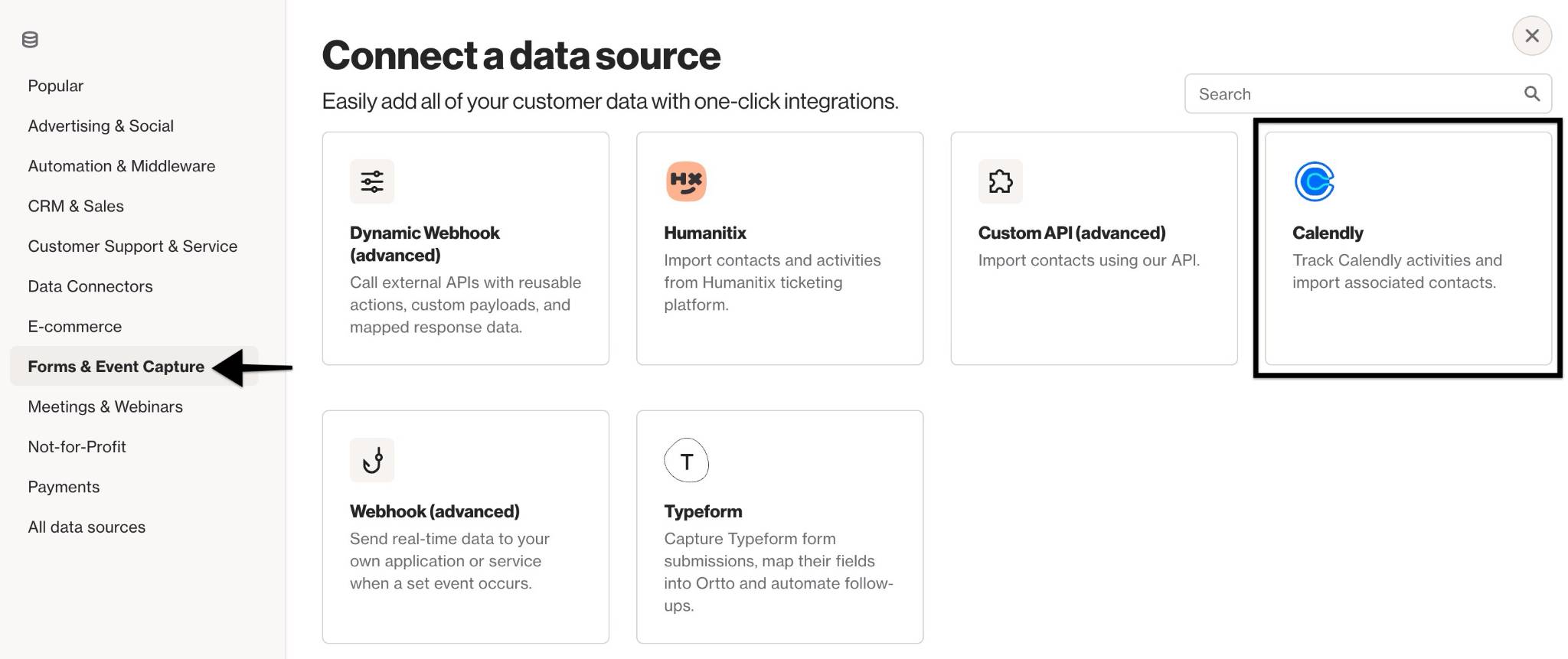
To access the Calendly data source, go to CDP > Data sources > + New data source > Form & Event Capture > Calendly.
Calendly prerequisites
This integration process requires a Calendly account on a paid plan (not the free plan) for which you have the authority and access credentials.
NOTE: Deleting a Calendly data source connection will not remove the current entries in the CDP for people or activities that were merged from that Calendly connection.
Connect from Ortto
To connect to Calendly:
- On the Data sources page, click New data source.
- Under Forms & Event Capture or All data source, select Calendly
- On this page, configure:
- Data retention to:
- store only the last 90 days of activity data, or
- select the time frame for the data stored, and the activities which will be stored.
- Select Advanced options to:
- Choose which CDP fields can be modified from the Calendly data source, or
- Choose not to modify CDP data fields that already have a value.
- Click Connect, a confirmation window will appear when you have not adjusted the data retention settings. Click Review storage to adjust the settings, or click Continue.
- On the Merge page, select the appropriate strategy by which people’s data is merged from Calendly into your Ortto’s CDP. The Import and merge new records only, Import and overwrite any records that exist, and Import new records only are equivalent to the respective Append only, Overwrite existing, and Ignore merge strategies for people.
- Click Next to import and synchronize data from Calendly.
- After the sync completes, a summary of the sync will appear; click Done.
TIP: It is a good idea to set the data retention limits while setting up the data source. Updating the data retention limits in the future will require a resync of the data source, which may affect multiple audiences and campaigns within the CDP.
Your Ortto account is now connected with Calendly.
This integration with Calendly adds the following Calendly-specific default configurations to your Ortto account:
- people fields to your CDP, and
NOTE: Ortto can connect to more than one Calendly account at a time if needed by following the same connection steps for the additional account.
How is the data merged into Ortto
Data is merged from Calendly to Ortto on the initial connection and subsequently, when an event occurs within Calendly. Data is not transferred from Ortto to Calendly.
When a person is added from the Calendly data synchronization, they are subscribed to receive email communications. No change is made to the person’s subscription to SMS notifications.
The Calendly integration syncs all contacts and associated data from your Calendly account, and is not limited to specific calendars.
Initial data sync
People details for the people who used Calendly to schedule, reschedule, or cancel an event are merged into the Ortto CDP. The merge follows the data merge strategy selected during the initial connection with Calendly. Ortto activities store data for each created, rescheduled and cancelled event.
Ongoing data merge
Data for the person and the event are merged with Ortto as the person schedules, reschedules, or cancels the event in Calendly. The individual data items continue to follow the data merge strategy selected during the initial connection with Calendly.
Resynchronizing data
Calendly data is resynchronized when the data source is reconnected and when the data retention limits are adjusted. A resync of the Calendly data may affect the audiences and campaigns within the CDP by resetting the attributes for the person, and activities. Causing a person to potentially re-enter an audience, or campaign within the CDP.
NOTE: A data resync may reset a persons Email permission attribute to subscribed after they have unsubscribed from receiving email communications.
What does the data source add to my account?
The Calendly data source adds:
- Calendly contact records and their associated fields to your CDP, known as people or contacts in Ortto.
- Calendly activities, based on the objects selected during setup, from the last 90 days. In some cases, however, it may be necessary to store an activity and its attribute data for longer. Therefore, Ortto provides a mechanism for customers on selected Ortto plans to opt-in to selectively store their activity data for longer. Learn more aboutcconfiguring data retention.
- The ability to use Liquid syntax in campaign messages to personalize your messages using merge tags for Calendly person fields, and activity attributes. Learn more about personalizing campaign content with Liquid.
View Calendly fields in your CDP
Customize your CDP field visibility and add Calendly fields by following these steps:
- Navigate to the People page under the CDP section of the sidebar.
- Click on the cog icon > select or clear the fields you want to show or hide.
Calendly fields are indicated with the small Calendly icon.
Learn more about Calendly person fields.
Access the Calendly data source view
When a data source is connected, you are provided with a data source view. You can access its view via CDP > Data sources.
A data source’s view is the administration page where you can:
- view and manage the data source in the left-hand details panel, and
- under the relevant tabs on the right-hand side, view:
- an Overview of the data source,
- an Activity feed, and
- an Audience table, which displays the people imported from Calendly.
In the details panel, you can:
- Rename the data source: Hover over the name > click the pencil icon > enter the new name > click anywhere on the page to save.
- Disconnect the data source: Click Actions > Disconnect.
- Configure data retention: Set the activity data retention period.
Learn more about managing data sources.
Calendly activities
Activities from Calendly are automatically added to your Ortto account when integrating with Calendly.
Learn more about Calendly activities, their attributes and field types.
Troubleshooting Calendly
You can troubleshoot your Calendly data source in-app.
Learn more about troubleshooting Calendly.