
Using line graph reports
Overview
Line graph reports help visualize how activity metrics change over time. Metrics are plotted along a timeline, making it easier to identify trends, patterns, and changes in performance.
They are typically used to monitor campaign or journey performance over time and to understand how engagement or activity volumes increase or decrease across a selected timeframe.
This type of report makes it easy to spot spikes, drops, or consistent trends in campaign interactions and contact behavior.
When to use a line graph report
You can use a line graph report when you need to track how activity metrics change over time.
Here are some example cases where a line graph report can be used:
- Monitor email opens, clicks, or sends across a campaign period
- Track how contact signups or conversions trend over time
- Review trends in e-commerce events or Talk conversations
Creating line graph reports
You can create a table report by selecting Analytics > Reports > +New Person/Account Report > Start from scratch > Table report.
When building the report:
- Click + Add metric to select the activity you want to report on.
- Click + Add another metric to include up to 9 total metrics
- Use the table below to configure the report's settings in the editor.
- Select Create to build the report on the account.
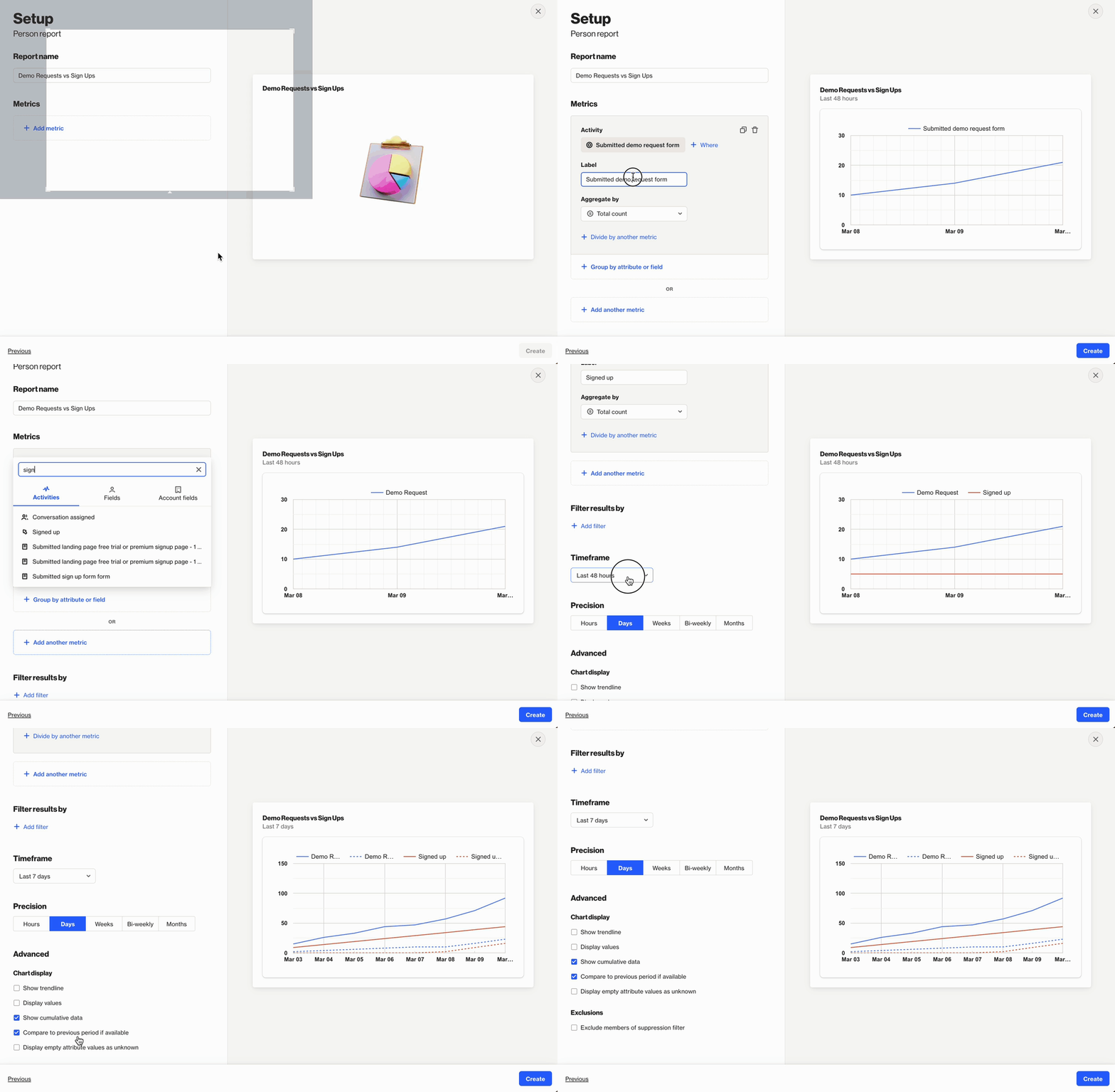
Below is a table of the available setting options for this report:
Setting | Description |
|---|---|
Report Name | Sets the internal name of the line graph report, making it easy to identify in the reports list and dashboards. |
Add metric / Add another metric | Select the activity, contact field, or account field to use as a metric in the report. Learn more about field-based reports. |
+ Where | Add conditions to refine which activities or field values are included in the metric. |
Label | Sets the name for the metric in the line graph key. |
Aggregate by | Choose how the metric is calculated: Total count or Unique total count. Metrics with number or currency attributes can also be aggregated by Sum or Average. |
Attribute for aggregate | When aggregating by Sum or Average, select the number or currency attribute to calculate. |
Associate by | When using Unique total count, select the attribute that determines how activities are counted as unique. Learn more about uniqueness. |
Divide by another metric | Divide one metric by another to calculate a rate or ratio. E.g. divide unique Opened Email by unique Received Email activities for an open rate. Learn more about campaign statistics. |
Display As | When dividing metrics, choose whether the result is displayed as a Rate (%) or a standard value. |
Filter results by | Apply additional filters to limit which contacts are included, such as audience membership, field values, or tags. |
Timeframe | Sets the date range for the report. Only activities within this window are included. |
Precision | Defines the time unit used to group and display activity data in the report. |
Uniqueness Window | Determines how often the same contact can be counted for the same activity. This prevents duplicate activity events from inflating results within a defined time period. Learn more about uniqueness windows. |
Show trendline | Adds a trendline to the graph to highlight the overall direction or pattern of the data over time. |
Display values | Displays the exact metric values on the graph so the specific counts for each data point are visible. |
Show cumulative data | Displays values as a running total across the selected timeframe, showing how the metric aggregates over time. |
Compare to previous period if available | Adds a comparison line showing the same metric from the previous equivalent timeframe to highlight changes in performance. |
Display empty attribute values as unknown | Includes records that do not have a value for the selected attribute and groups them under Unknown so they remain represented in the graph. |
Exclusions | Allows you remove contacts in your suppression list from your report, such as internal users or test contacts, to keep your results clean and accurate. Learn more about the email suppression list. |
TIP: When isolating a specific campaign using the + Where condition, apply the same condition to all metrics in the table to ensure the results are accurate and comparable.
Interpreting line graph reports
A line graph report displays activity metrics plotted across a timeline. The graph is made up of time intervals along the horizontal x-axis and metric values along the vertical y-axis.
Each point on the line represents the calculated value of a metric for a specific time interval within the selected timeframe. When multiple metrics are added, each metric is displayed as a separate line on the graph.
If Compare to previous period is enabled in the Chart Display settings, the report also displays dashed lines in the same color as each metric. These dashed lines represent the metric’s values from the previous time period, allowing you to visually compare current performance with the prior period.
Hovering over any point on the graph will display the metric value and the corresponding time interval for that data point.
Understanding the timeline (X-axis)
The horizontal axis represents the time intervals used to group activity data. The intervals are determined by the Precision setting.
For example:
- Hour groups activities into hourly intervals.
- Day groups activities into daily intervals.
- Week groups activities into weekly intervals.
- Month groups activities into monthly intervals.
Each point on the graph represents the calculated metric value for that specific time interval.
Understanding the metric value (Y-axis)
Each line in the graph represents a metric added to the report. The vertical axis shows the value of that metric for each time interval.
Depending on the configuration, a metric may show:
- The total count of matching activities or records.
- The unique total count, where each contact is counted once based on the selected association.
- A sum or average of a number or currency attribute.
- A rate or ratio when the metric is divided by another metric.
Reading across the timeline allows you to see how a metric changes over time, while comparing multiple lines helps identify differences in trends between metrics.
NOTE: Reports are built using existing activity data. The data available in a report depends on each activity’s data retention settings. Learn more about data retention.
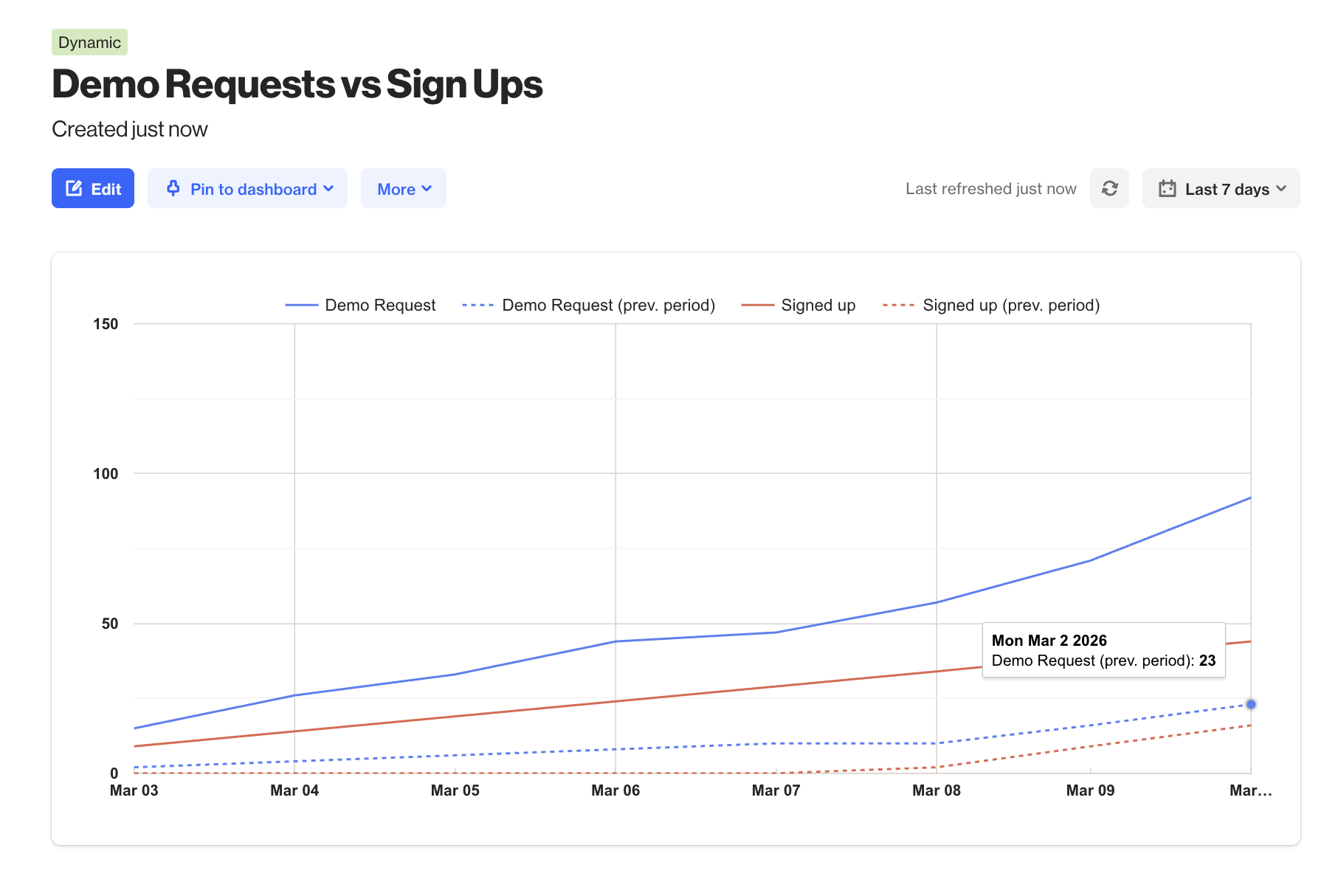
EX: This report compares demo requests and sign-ups over the last 7 days.
The blue line shows demo requests and the red line shows sign-ups. In this example, demo requests increase from 15 on Mar 3 to around 92 by Mar 10, while sign-ups grow from about 9 to 44 over the same period.
The dashed lines show the previous period, allowing you to compare how activity has changed. In this case, both demo requests and sign-ups are higher than the previous period, indicating increased interest and conversions.