Using Squarespace in Ortto
Overview
This page helps you discover how you can get the most out of your Squarespace integration with Ortto’s filters, reports, and campaigns.
Learn more about connecting Squarespace in Ortto.
Filters
When connecting Ortto to Squarespace, activities and person fields are automatically generated for this data source. These can be used in filters across campaigns, audiences, CDP segmentation, as well as in reports and dashboards.
Examples of how to use Squarespace activities and fields in filters:
- You can recover abandoned checkouts from your Squarespace store automatically by creating a journey campaign with a series of email and SMS messages. We’ve created a template for this journey, which you can modify with Squarespace activities and fields.
- Create a journey or playbook campaign to automatically notify an audience when the product is available by leveraging the Squarespace integration is using the Waiting on stock and Back in stock activities.
NOTE: Ensure you have enabled the Squarespace Back in stock widget in order to use the Back in stock activity.
Email message widgets
When you create an email campaign or an email message within a journey or playbook, you can access a number of content widgets to customize your email message with Squarespace data.
Choose from the following content widgets to drag and drop into your email message.
Then click Configure to set up the widget as you’d like it.
Reports
You can use Ortto’s powerful reports to gain insight into your Squarespace customers' cart, checkout, order, and waiting on stock activities.
Examples of how to use Squarespace in Ortto reports
- Visualize the impact of your advertising campaigns on revenue:
- On the Reports page, click New report.
- Under New report, choose a Pie type, then click Next.
- For the Metrics:
- add Attributed and Aggregate by Sum of attribute.
- choose Group by attribute Campaign name.
- Edit any of the default settings a required, then click Create to view your report.
- Find out how many people made a purchase after being notified that an item was back in stock:
- On the Reports page, click New report.
- Under New report, choose a Funnel type, then click Next.
- For the Metrics, add Back in stock and Order created for Squarespace.
- Edit any of the default settings a required, then click Create to view your report.
Learn more about reports in working with reports.
Squarespace-specific merge tags
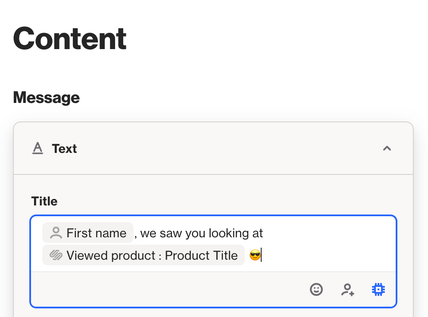
Merge tags let users customize content based on individual, accounts (previously organizations), custom fields, or activity attributes. When integrating with Squarespace, this allows you to use merge tags related to Squarespace fields and activity attributes.
For example, you can turn browsers into buyers using merge tags in email, SMS or push campaigns. If a potential customer views a product page, but doesn’t make a purchase you can send them a message or notification reminding them about the product and providing an incentive to buy, such as with a coupon for their first purchase. Insert merge tags for the Squarespace Viewed product activity to add the specific product details to the message or notification.