
WooCommerce integration
Overview
WooCommerce is a customizable, open-source eCommerce platform built on WordPress. When you connect WooCommerce with Ortto you'll unlock the ability to track store interactions and create personalized, WooCommerce-specific email content to drive engagement and sales.
Accessing WooCommerce
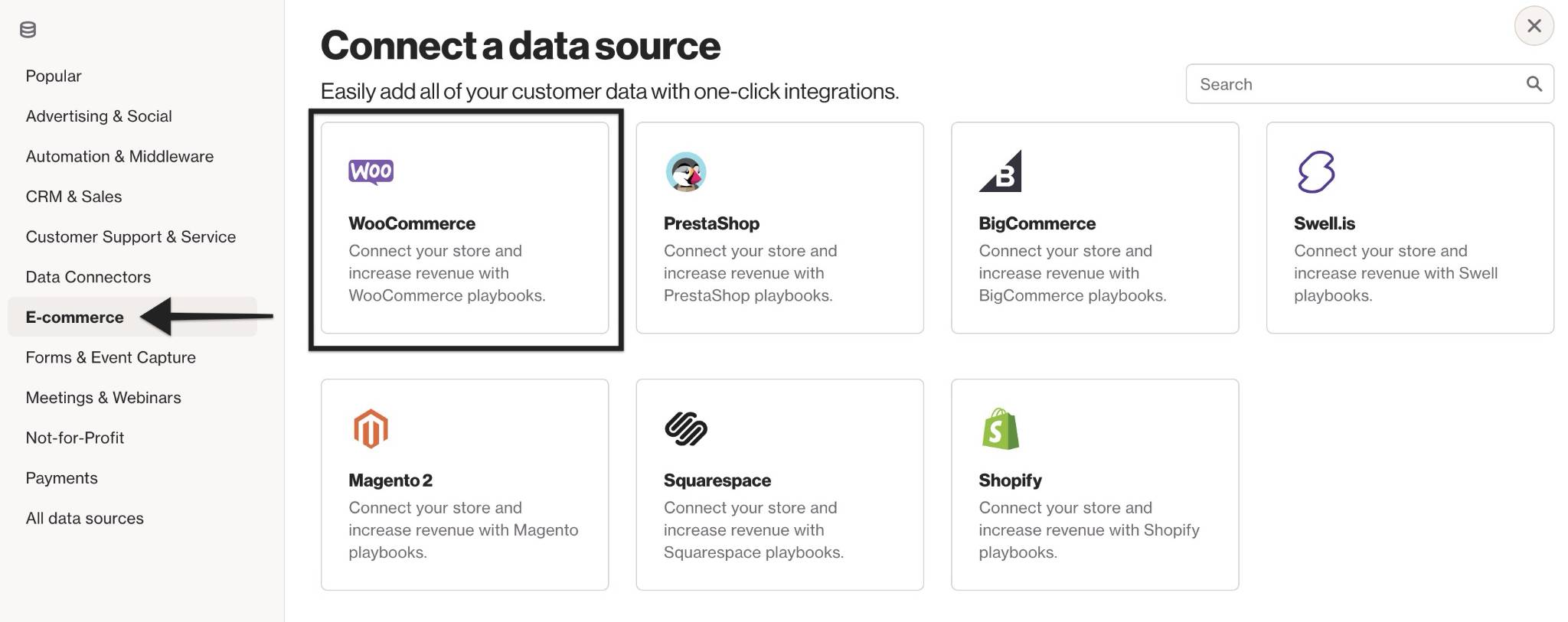
To access the PresetaShopa data source, go to CDP > Data sources > + New data source > E-commerce > WooCommerce.
WooCommerce / WordPress prerequisites
This integration process assumes you have an operating WooCommerce or WordPress site, and a WordPress user account with administrator privilege access to this site.
Install the Ortto (Autopilot) plugin in WordPress
Follow these steps to install the Ortto plugin in WordPress, after which you can then connect to Ortto from the WordPress admin interface.
- Access the administrator interface to your WooCommerce / WordPress site. For example:
https://<your-woocommerce-or-wordpress-site>/wp-admin/. - Log in with your administrator account.
- If the admin menu does not indicate an Autopilot item, click Plugins > Add New from the admin menu. If the Autopilot admin menu item is available, proceed to Connect from the WordPress admin interface.
- On the Plugins page, search for 'Autopilot', and wait for the plugin filtering process to complete.
- Scroll down, locate the Autopilot plugin item from the list, and click the Autopilot plugin item.
- On the Autopilot plugin page, click Install and activate.
- Once the installation process is complete, click Manage Plugins to return to the WooCommerce/WordPress administrator interface.
- Wait until the Autopilot admin menu item appears (refreshing your page if necessary) before proceeding.
Connect from the WordPress admin interface
Use these steps to complete the integration between Ortto and your WooCommerce / WordPress site from the WordPress admin interface, by establishing the connection between the systems.
- Assuming the Ortto (Autopilot) plugin in WordPress has already been installed, click the Autopilot admin menu item to open its page.
- Scroll down to Step 1: Connect your account, and click Connect account.
- On the new WooCommerce Autopilot would like to connect to your store page, click Approve to allow Ortto to connect to your WooCommerce / WordPress site through your currently logged in WordPress user account.
- The Ortto Accounts page appears, from which you should click the Ortto account (also known as an 'Ortto instance') to integrate with your WooCommerce / WordPress site.
- On the Connect WooCommerce page, click Connect. You are returned to the Ortto plugin admin page WordPress, and Step 1: Connect your account should now indicate that you are connected to your Ortto’s Business name.
- Further down the page in Step 2: Connect to enable website tracking script, it is highly recommended that you select the Enable tracking script checkbox to provide a more effective integration experience between WooCommerce / WordPress site and Ortto.
- Click Complete setup to save the Ortto integration configuration in WooCommerce / WordPress.
NOTE: If your BigCommerce store had already been connected to an Ortto account, then the Connect your account step may already indicate this existing connection (with a link to this Ortto account), and the button will indicate Reconnect instead of Connect.
NOTE: If you have created multiple Ortto accounts with the same sign-in credentials, then each of these Ortto accounts will appear on the Accounts page.
NOTE: By default, Ortto allows WooCommerce to modify all relevant data values of people in your Ortto account’s CDP, based on the equivalent data values of these people in your WooCommerce site. This is the default behavior if you were to integrate Ortto with WooCommerce when initially creating a new Ortto account.
A given person may be registered in multiple data sources, where a specific data value associated with this person (e.g. their phone number), might be different in each data source. When an Ortto account is integrated with these multiple data sources, each of which is allowed to modify data values in the CDP, then this person’s data value (e.g. phone number) could be modified in the Ortto account’s CDP, based on recent activities performed by the person through each of these different data sources.
Hence, data values for people in an Ortto account’s CDP can constantly change.
When a relevant activity in WooCommerce is conducted by this person, WooCommerce can update their data values (e.g. phone number) to the one/s configured in their WooCommerce profile.
TIP: The Business name is a hyperlink that opens your Ortto account when clicked.
Your Ortto account is now connected to and integrated with your WooCommerce/WordPress site.
WooCommerce activities
Once you have integrated WooCommerce with Ortto a number of relevant WooCommerce activities and attributes are added to Ortto.
Adding WooCommerce content to your emails
Once you have integrated WooCommerce with Ortto a number of relevant email content blocks are added to Ortto.
Learn more about adding WooCommerce content to your emails.