Using Microsoft in Ortto
This feature is currently in its beta phase. If you have any feedback, questions, or issues, please contact our support team.
Overview
This page helps you discover how you can get the most out of your Microsoft Dynamics integration with Ortto's filters and campaigns.
If you haven't connected to Microsoft yet, you can do so by following this guide.
Filters
The Microsoft Dynamics activities, contact, and account fields that are added to your Ortto account can be used anywhere you can create a filter - such as in campaigns, when creating an audience, when viewing a segment of people, as well as in reports.
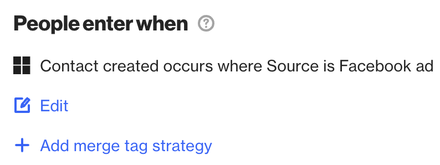
For example, you can set a condition in your journey that triggers when a Contact Created activity occurs (Microsoft activity), followed by a where clause to specify an attribute value:
Another example is the ability to run filters directly on the People page, which allows you to view the contacts that match the specified conditions and create a campaign directly from there, whether that’s a journey, email, or SMS.
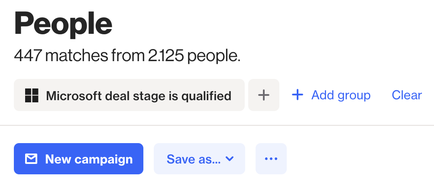
TIP: If you plan to use a certain filter often, you can save it as a filter or an audience. Both options will be available when you click Save as… button.
Learn more about saved filters and audiences.
Actions
Actions allow you to use Ortto to create or update contact records within Microsoft Dynamics. You can add an Action shape in a journey to use either of the following Microsoft Dynamics actions:
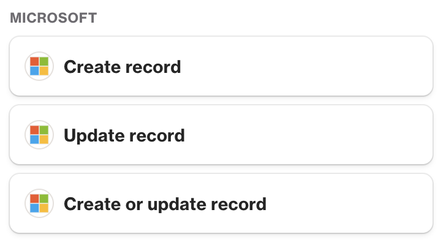
- Create record: Creates a new contact record in Microsoft Dynamics.
- Update record: Updates an existing contact record in Microsoft Dynamics.
- Create or update record: Creates a new contact record if one does not already exist, or updates an existing record if a match is found.
Sync new Ortto contacts to Microsoft
For example, when a new lead fills out a form on your website or landing page, you can use a journey to automatically create them as a contact in Microsoft Dynamics. Set the journey's entry condition to the relevant form submission activity, then add a Contact record action shape. This ensures your sales team always has an up-to-date view of inbound leads in their CRM without any manual data entry:
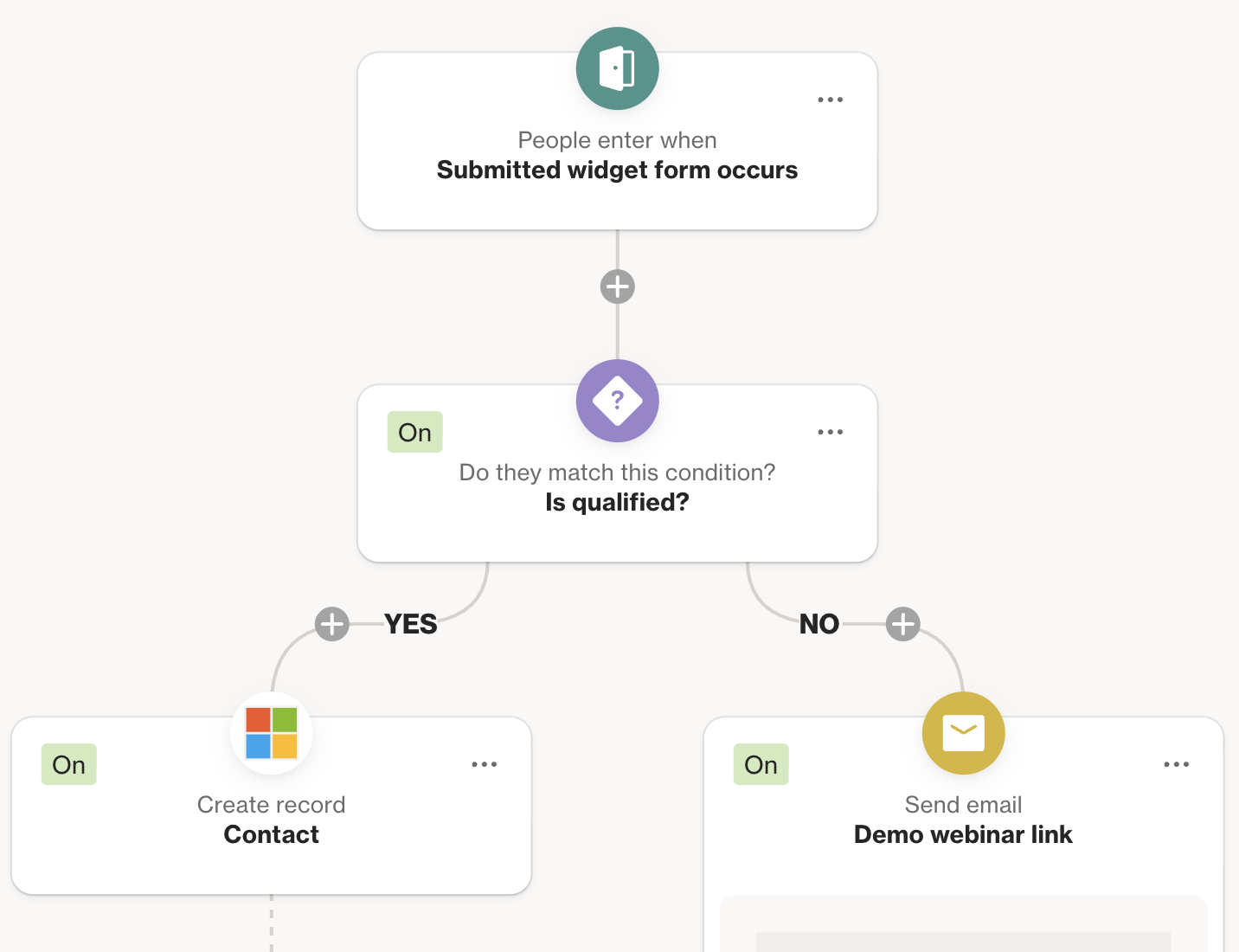
If you expect some contacts to already exist in Microsoft Dynamics, for example, returning customers or re-engaged leads, you can use the Create or update action instead.
Enrich Microsoft on campaign engagement
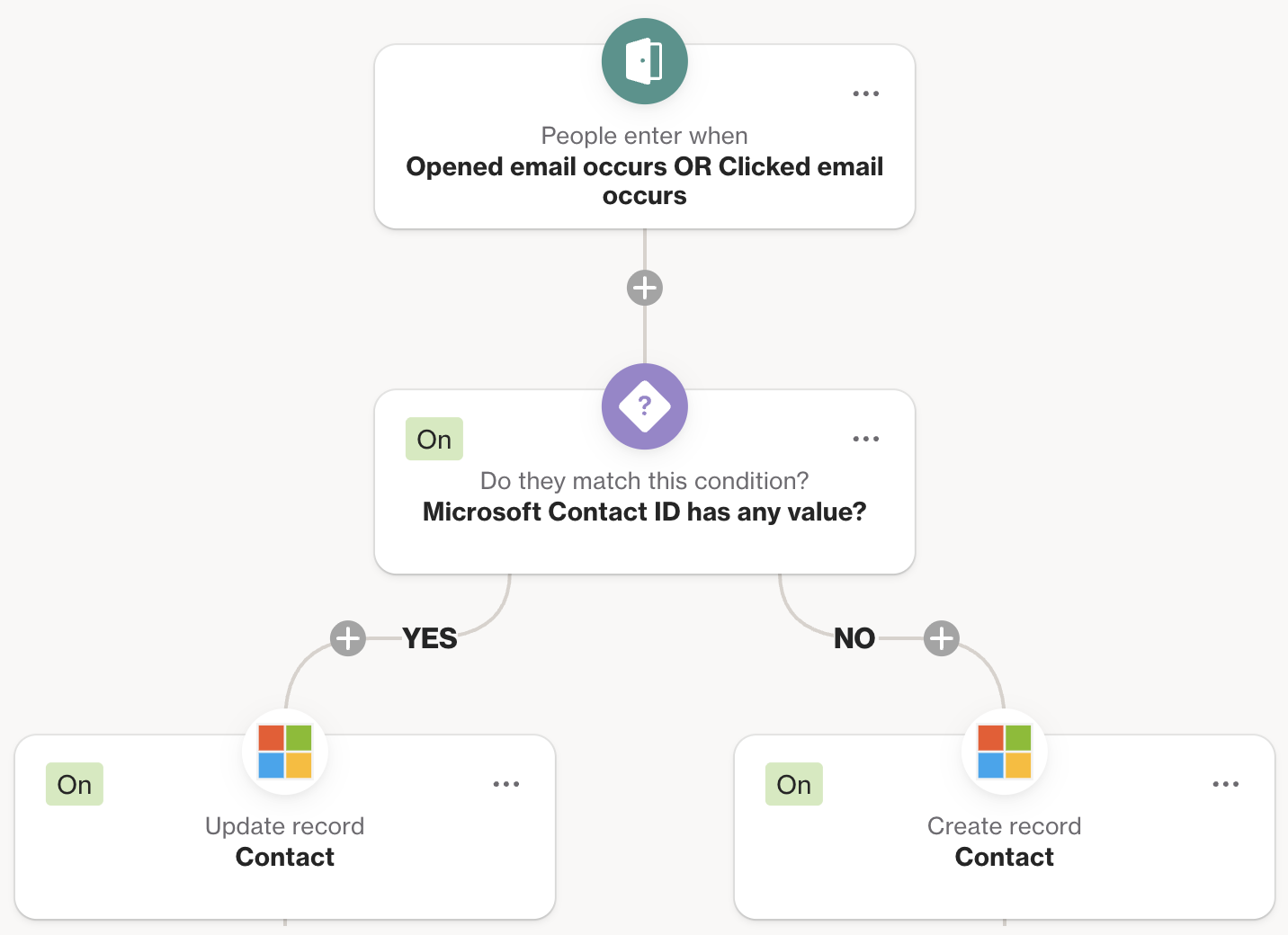
Build a journey triggered when a contact opens or clicks a campaign email. Use a Condition shape to evaluate whether the contact already exists in Microsoft (for example, checking whether their Microsoft Contact ID has a value). If they do, use the Update contact action to update their record. If they don't yet have a Microsoft record, use the Create contact action to add them.