
Microsoft Dynamics integration
This feature is currently in its beta phase. If you have any feedback, questions, or issues, please contact our support team.
Microsoft Dynamics integration
Microsoft Dynamics is a customer relationship management (CRM) service that also provides customer service-based enterprise applications.
You can leverage Ortto's powerful campaign and reporting features on your customer data from Microsoft Dynamics. To do this, proceed through each of the following procedures to integrate Ortto with your Microsoft Dynamics service as a data source.
Microsoft Dynamics prerequisites
This integration process assumes you have an operating Microsoft Dynamics service, and a Microsoft Dynamics user account with System Administrator access to this service.
Connect from Ortto
You can connect to Microsoft from within your Ortto app. To do so, follow the steps below:
1. Navigate to CDP > Data sources and click New data source.
2. Select Microsoft.
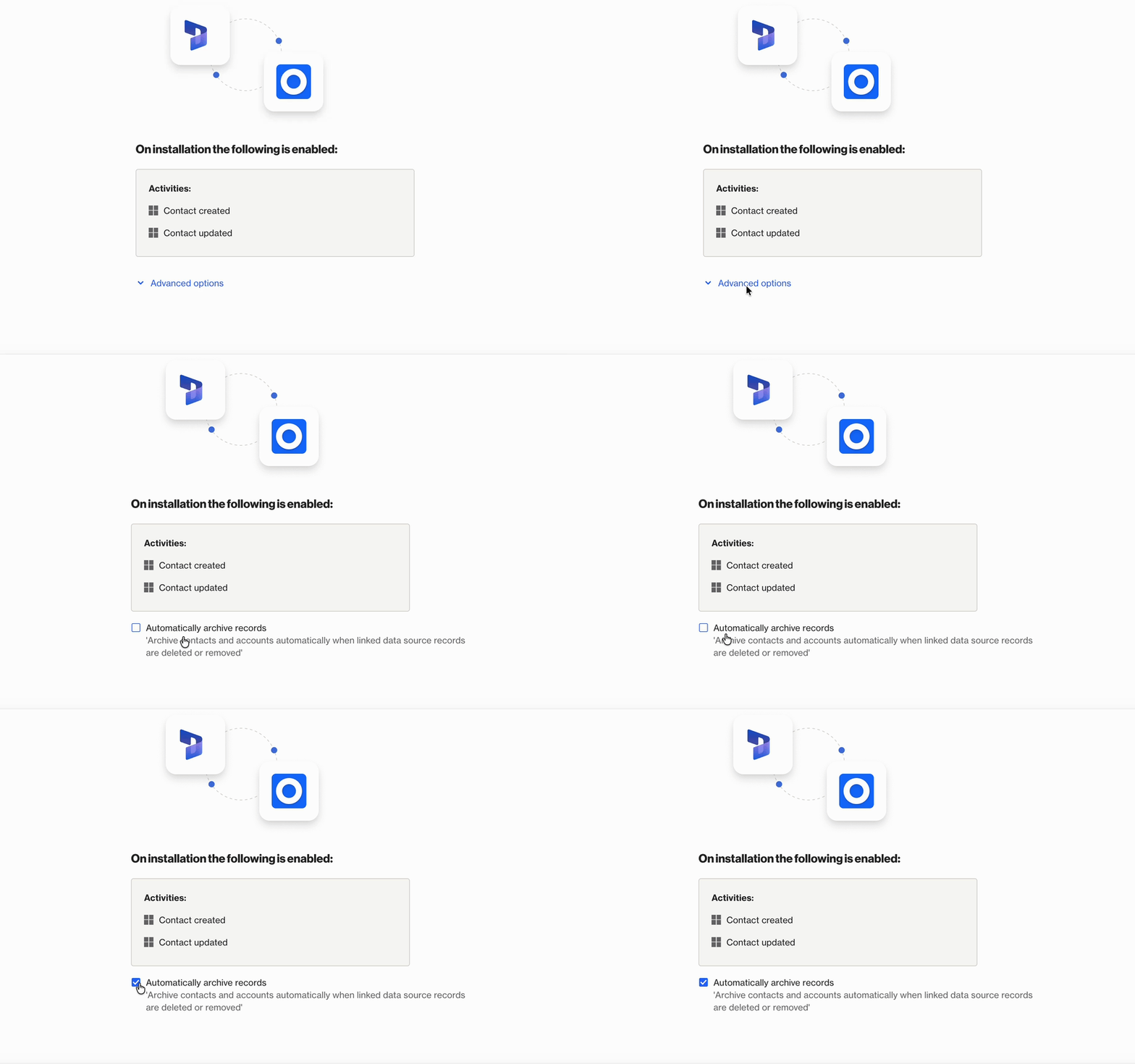
3. If you want to allow Microsoft Dynamics to automatically archive records when linked data source records are deleted or removed, click Advanced options and select the option.
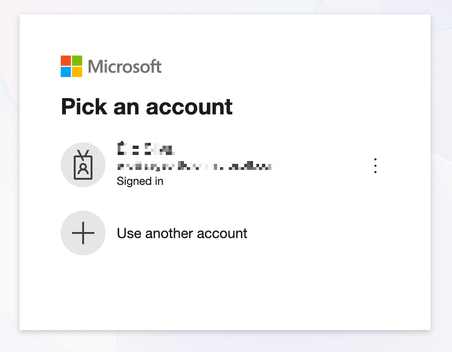
4. Click Connect and authenticate with your Microsoft account:
5. On the Fields page, choose which Microsoft Dynamics objects and their fields will be synchronized across to your Ortto account's CDP.
NOTE: There is a limit of 100 custom contact fields and 50 custom account fields cumulatively across all objects (the limits do not include default fields). You can expand any objects on this page to then clear and select any other fields to be synchronized with Ortto
6. At this point, you can set the Email permissions and SMS permissions for Microsoft Dynamics contacts synced to Ortto. This ensures that any new contacts added to your CDP are given the correct permissions as set in Microsoft Dynamics (otherwise, new contacts added to your CDP are automatically subscribed to email by default).
7. If there are any additional objects and their field data you want to select to be synchronized in your Ortto account's CDP, select these from the Custom objects section.
8. For each default and custom object selected you can map the object's fields to relevant Ortto fields.
9. Click Next.
10. On the Records page, choose between syncing all your chosen object data in the previous step across to Ortto (by leaving Sync all selected), or click Selectively sync to specify conditions on Microsoft Dynamics object data related to people or accounts in your Ortto CDP that will be synced.
11. On the Merge page, select the appropriate strategy by which people's and accounts' data are merged from Microsoft Dynamics into your Ortto CDP.
12. Click Sync. Once the Syncing your data page appears, click Done.
Your Ortto account is now connected to and integrated with your Microsoft Dynamics service.
How is the data merged into Ortto?
Data is merged from Microsoft Dynamics to Ortto on the initial connection. Subsequently, new modified objects are synced approximately every 15 minutes.
The Microsoft Dynamics integration is initially configured as read only, which means that no data is sent from Ortto to Microsoft Dynamics. Should you wish to send data from Ortto to Microsoft Dynamics, you can create a journey using Microsoft Dynamics actions.
NOTE:
- If you did not determine your Microsoft Dynamics contact's email and SMS permission during the integration setup, then any new contacts are automatically subscribed to receive email communications. (New contacts are unsubscribed to SMS by default).
- If a contact synced from Microsoft Dynamics already exists in Ortto, the contact will not have their email or SMS permissions changed; they will remain as they were set in Microsoft Dynamics.
Initial data sync
Contact and account details, along with default objects and any custom objects you selected, are merged into the Ortto CDP. The merge follows the data merge strategy selected during the initial connection with Microsoft Dynamics. Ortto activities store data based on the objects you chose to be synced during the integration.
Ongoing data sync
Microsoft Dynamics data is merged in to Ortto approximately every 15 minutes.
Resynchronizing data
Microsoft Dynamics data is resynchronized when the data source is reconnected (e.g. you disconnect then reconnect Microsoft Dynamics).
The resync will not perform a full backfill of data, it will only import changes that occurred since the last Ortto request for Microsoft Dynamics data.
NOTE: A resync of the Microsoft Dynamics data may affect the audiences and campaigns within the CDP by resetting the attributes for the person, and activities, causing a person to potentially re-enter an audience or campaign within the CDP.
What does the data source add to my account?
The Microsoft Dynamics data source adds:
- Microsoft Dynamics contact and account records and their associated fields/objects to your CDP.
- Microsoft Dynamics activities from the last 90 days.
Access the Microsoft Dynamics data source view
When a data source is connected, you are provided with a data source . On the page, click the data source you wish to view.
In the details panel, you can give the data source a new name (this will not affect your Microsoft Dynamics account settings). To do so, hover over the name and click the pencil icon, then type the new name and click on a blank area of the page to save the name. You can also disconnect the data source, and modify:
- whether to modify system CDP fields,
- the merge strategy,
- the default and custom Microsoft Dynamics fields to sync,
- Ortto activities to sync to Microsoft Dynamics, and
- the data retention period.
Learn more about the data source view under Managing data sources.
Adding or removing Microsoft Dynamics fields
After the Microsoft Dynamics data source has been connected, you can still connect or disconnect fields and objects as needed in the future.
To do so, scroll down the settings panel for the data source page and click Edit the button under the Microsoft fields section.
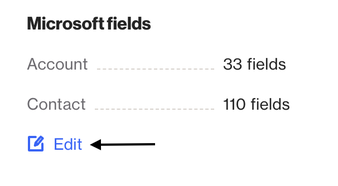
This will take you to the object and field manager for the data source where you can select the checkbox for the fields and objects that you'd like to include, or uncheck the box for those that you'd like to remove.
Using Microsoft Dynamics
Learn about how you can use Microsoft Dynamics with Ortto's filters and campaigns to get the most out of your integration.