
Humanitix integration
This feature is currently in its beta phase. If you have any feedback, questions, or issues, please contact our support team.
Overview
The Humanitix integration allows you to connect your Humanitix account to Ortto and sync event, ticket, and donation data for your contacts. This enables you to track attendee activity, capture ticket purchases, and use that data to power workflows, reporting, and personalized messaging.
Humanitix prerequisites
Before setting up the Humanitix integration, you’ll need a Humanitix API key. This key allows Ortto to securely connect to your Humanitix account and access event data.
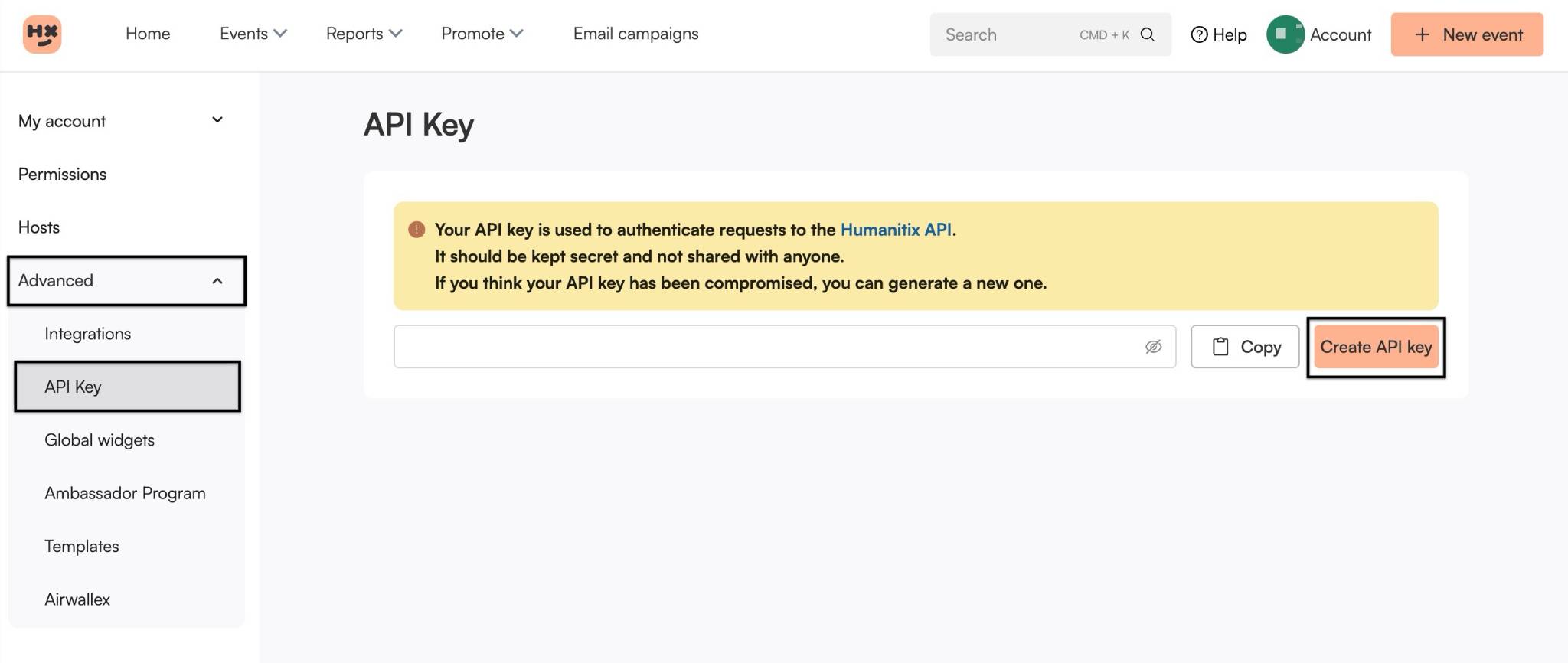
To create a Humanitix API key:
- Log in to your Humanitix account.
- Click Account on the top right of the navigation menu
- Select Advanced > API Key
- Click Create API key
- Copy and securely store the API key.
NOTE: If you already have an existing API key in use, it is recommended to instead copy the existing key as creating a new key will invalidate the current one.
Connect from Ortto
To connect Humanitix:
- Click CDP > Data sources > + New data source.
- Under Not-for-Profit or by searching, select Humanitix.
- On the Connect to Humanitix page, start by entering the Humanitix connection name
- Enter your API key from Humanitix.
- If needed, select Advanced options to choose which CDP fields can be modified from the Humanitix data source.
- The following activities are enabled on installation:
- Donation received
- Order placed
- Ticket refunded
- Checked in
- Checked out
- Select your Data retention preference:
- Store only the last 90 days of activity data, or
- Store activity data for more than 90 days on selected activities
TIP: It is recommended to set the data retention limits while setting up the data source. Updating the data retention limits in the future will require a resync of the data source, which may affect multiple audiences and campaigns within your customer data platform (CDP). Learn more about configuring data retention.
- Choose your Polling frequency to define how often the data source is checked for new data between 15 min, 30 min, or 1 hour.
- If needed, select Advanced options to choose which CDP fields can be modified from the Humanitix data source.
- Modify system CDP fields (default): Selected fields can be modified from the data source, including email address, phone number, first name, last name, post code, country, region, and city, or
- Don’t modify system CDP fields: CDP fields with values won’t be modified
- Click Connect.
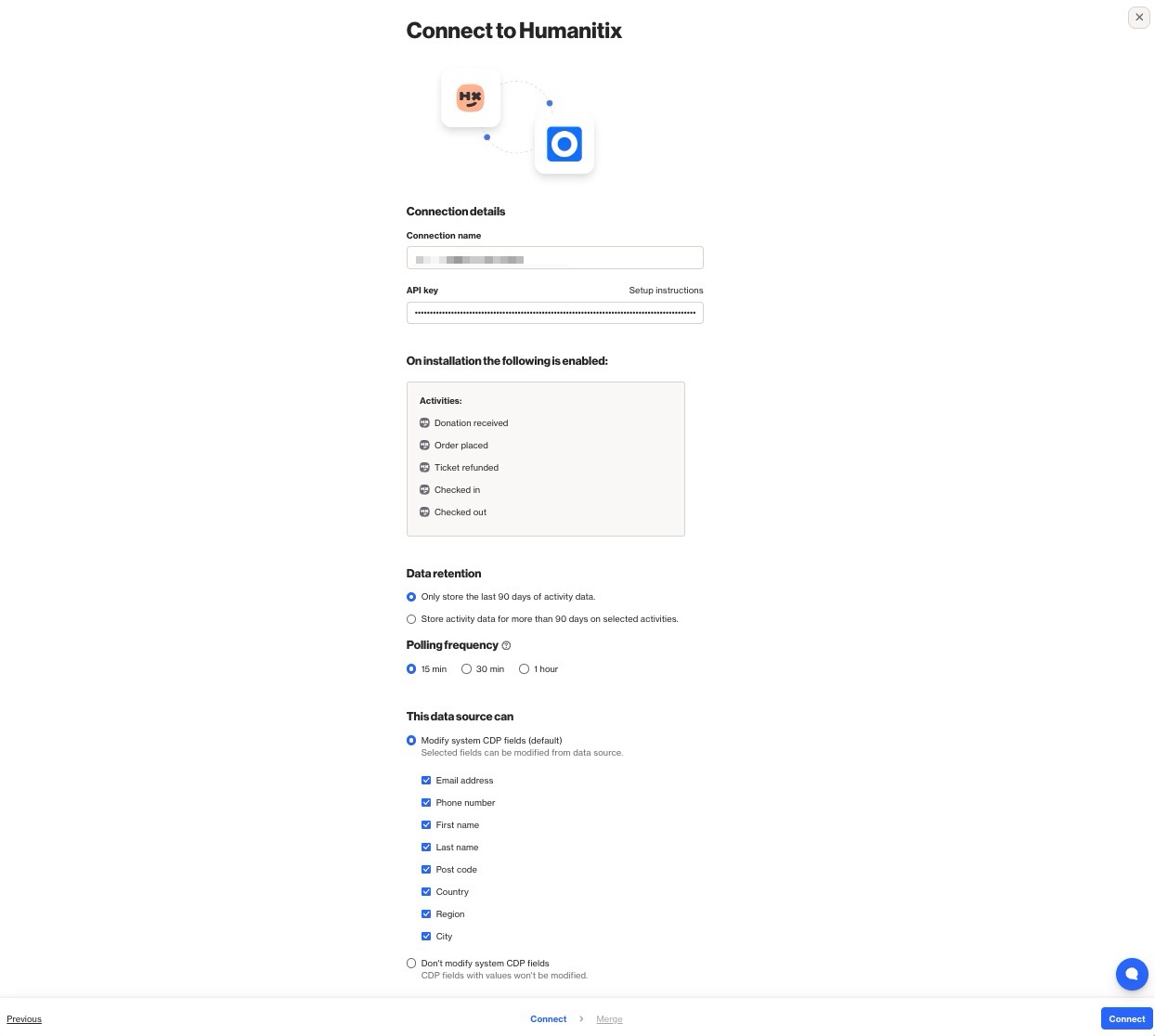
Connect step of Humanitix integration wizard. - On the Merge page, select the appropriate strategy by which contact data is merged from Humanitix into your Ortto’s CDP. Learn more about data source merge strategies.
- Use the Subscription control settings if you'd like to designate Humanitix as the primary source for subscription status:
- Email opt-in: Humanitix will act as the source of truth for email subscription status.
- Select Finish.
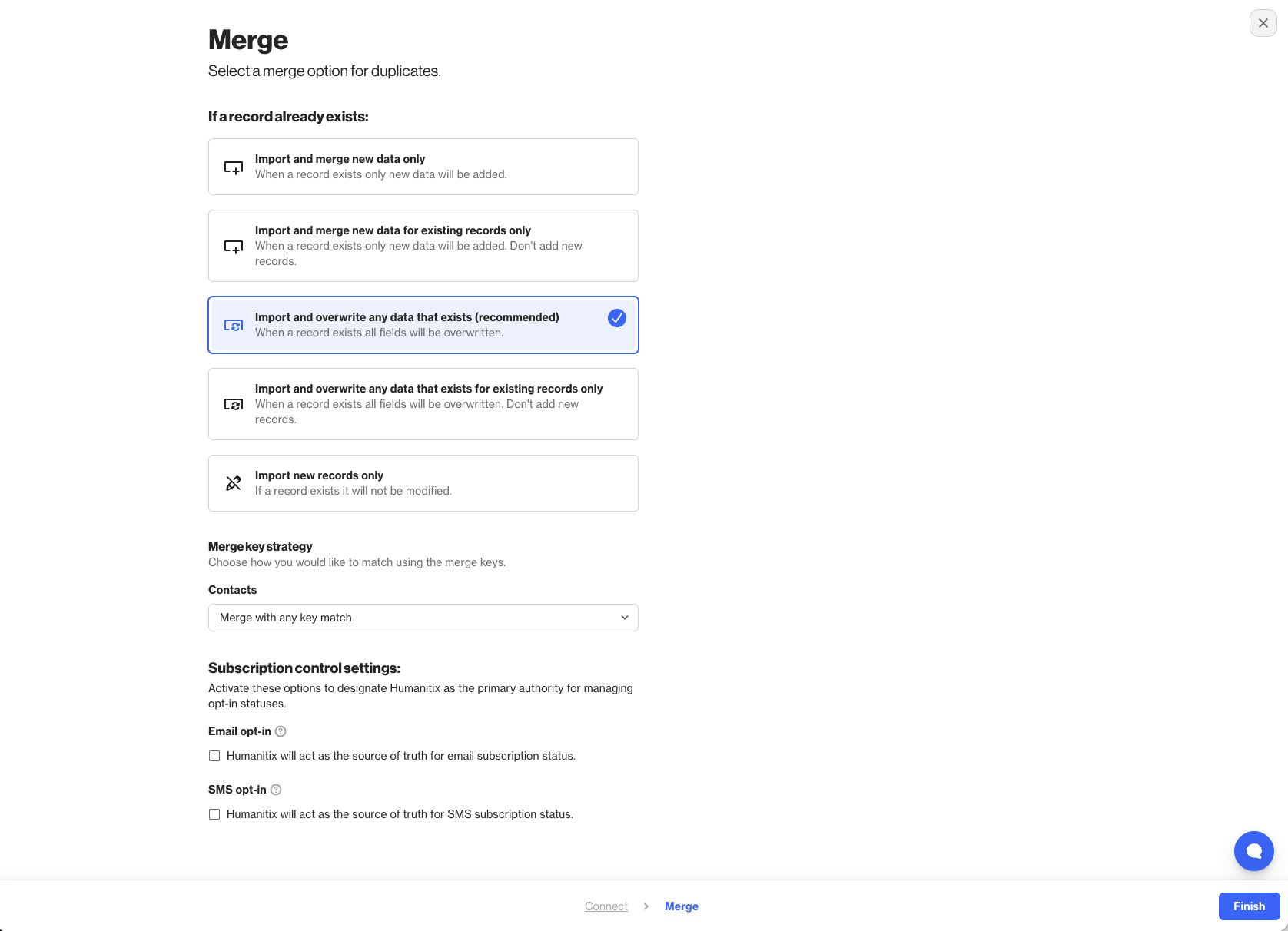
Merge step of Humanitix integration wizard.
How is the data merged into Ortto?
Data is merged from Humanitix to Ortto on the initial connection and subsequently when new activity data is available based on the selected polling frequency.
When a person is added to your CDP from the Humanitix data synchronization, their email subscription status can be set based on your selected Subscription control settings.
Initial data sync
On initial connection, Humanitix data is merged into the Ortto CDP, including:
- Contact details, such as name, email, and phone number
- Activity data, such as donations, ticket orders, refunds, and check-ins/check-outs
This sync follows the data merge settings selected during the Merge step of setup.
Ongoing data sync
Humanitix data is merged into Ortto with the polling frequency you set. You can select one of the following:
- 15 minutes
- 30 minutes
- 1 hour
NOTE: For example, selecting 15 minutes means the data is merged into Ortto approximately every 15 minutes.
Resynchronizing data
Humanitix data is resynchronized when the data source is reconnected and when the data retention limits are adjusted. A resync of the Humanitix data may affect the audiences and campaigns within the CDP by resetting the attributes for the person, and activities, causing a person to potentially re-enter an audience or campaign within the CDP.
What does the data source add to my account?
Connecting Humanitix as a data source adds:
- Humanitix contact records to your CDP
- Activities: Donation received, Order placed, Ticket refunded, Checked in, Checked out.
- The ability to use Liquid syntax in campaign messages to personalize content using merge tags for Humanitix fields and activity attributes. Learn more about personalizing campaign content with liquid.
View Humanitix fields in your CDP
Customize your CDP field visibility and add Humanitix fields by clicking the cog icon, then select or clear the fields you want to show or hide. Humanitix fields are indicated with the small Humanitix icon.
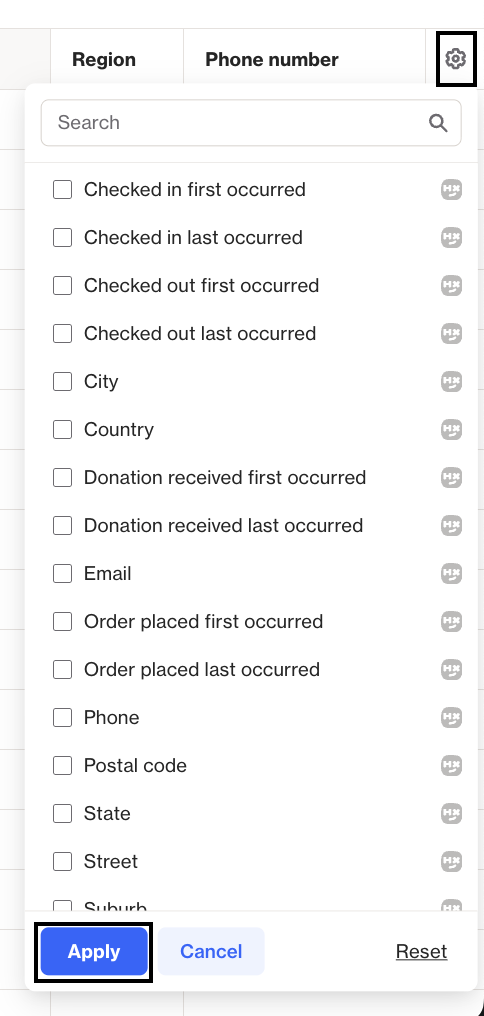
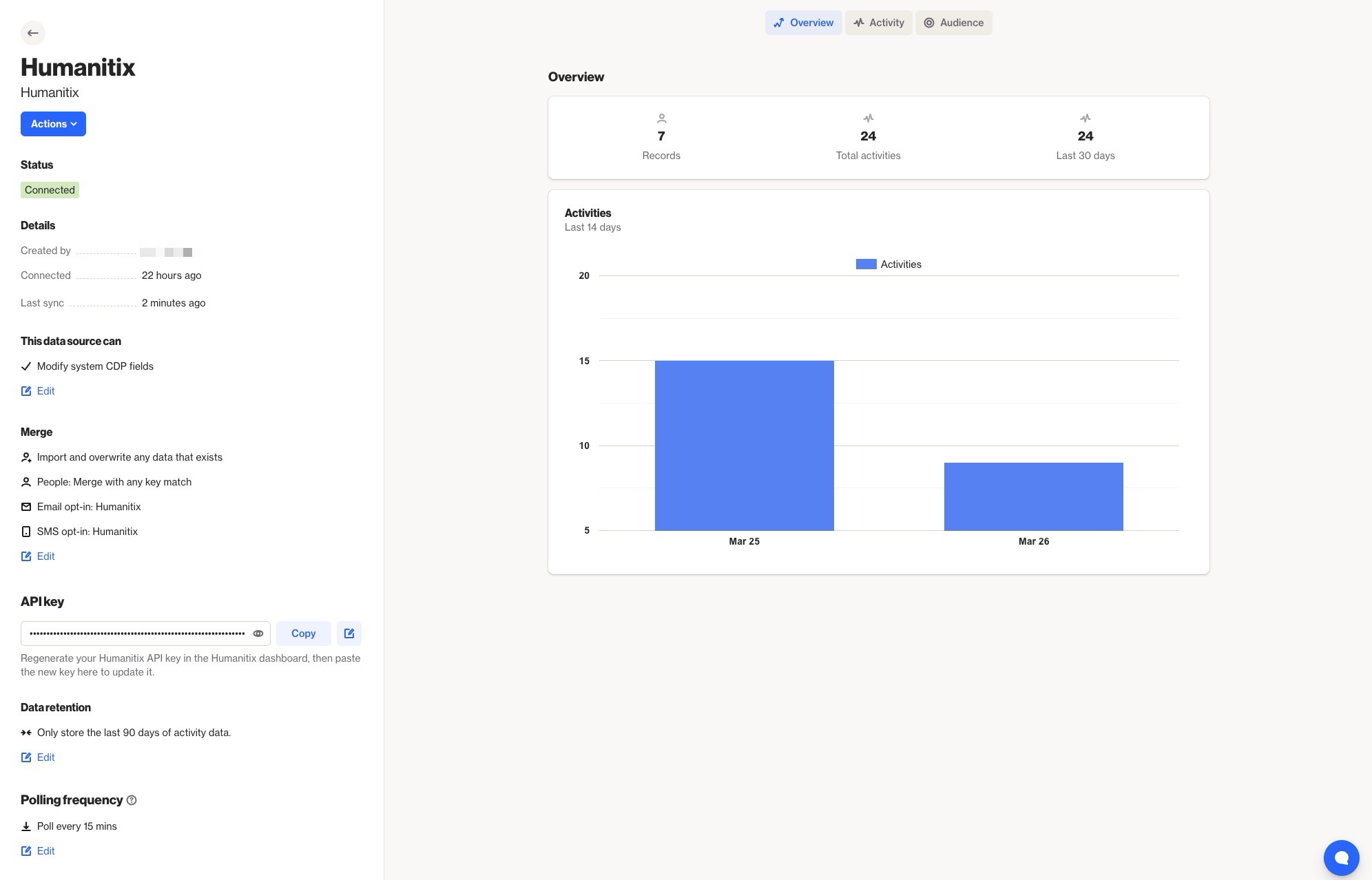
Access the Humanitix data source view
When a data source is connected, you are provided with a data source view. From CDP > Data sources, click the data source you wish to view.
A data source’s view is the administration page where you can:
- view and manage the data source in the left-hand details panel, and
- under the relevant tabs on the right-hand side, view:
- an Overview of the data source,
- an Activity feed, and
- an Audience table, which displays the contacts imported from Humanitix.
In the details panel, you can give the data source a new name. This will not affect your Humanitix account settings. To do so, hover over the name and click the pencil icon, then type the new name and click on a blank area of the page to save the name. You can also disconnect the data source, and modify the data retention period.
Learn more about managing data sources.
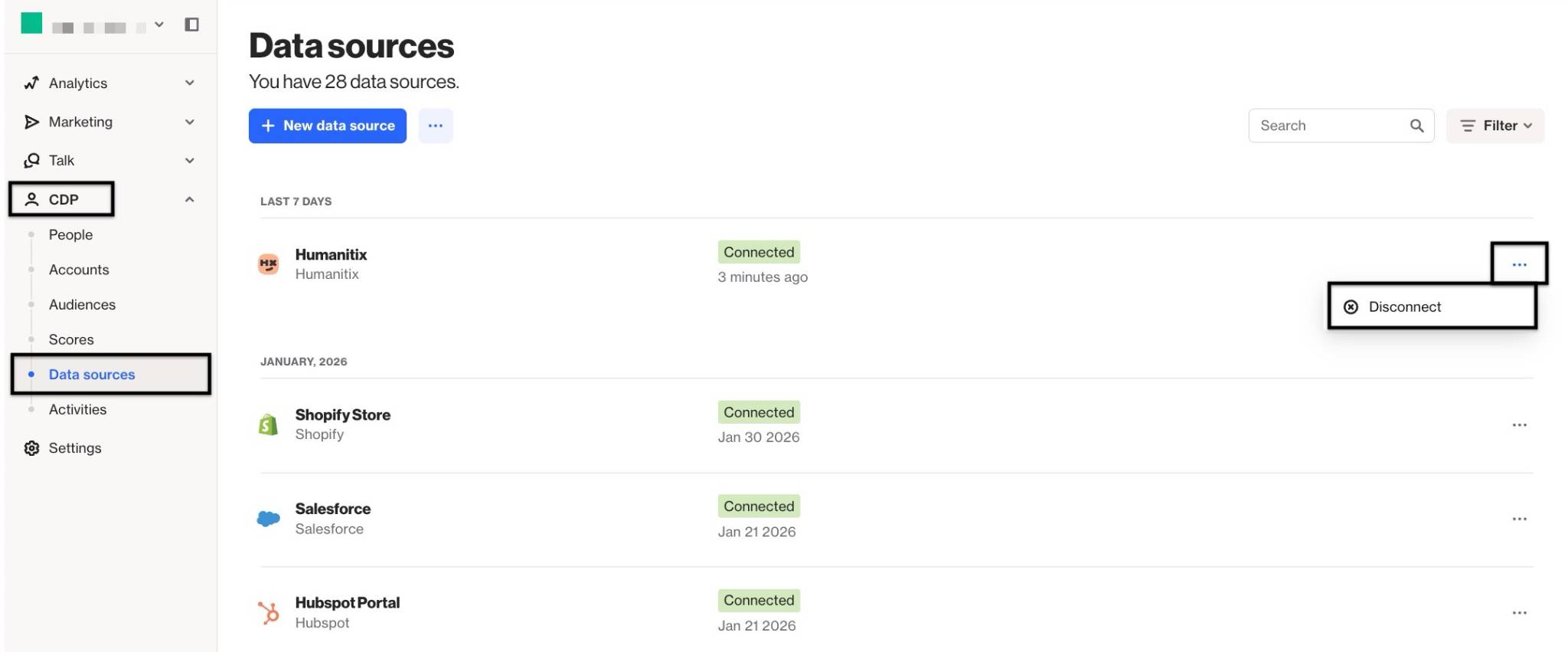
Disconnect and delete the data source
You must disconnect and archive a data source before you can delete it.
Disconnecting a data source from Ortto will stop new data from the data source merging with the CDP.
Learn more about disconnecting, archiving and deleting a data source.
NOTE: Deleting the Humanitix data source connection will not remove existing people or activity records that were previously merged into your CDP.