Microsoft Teams integration
Overview
The Microsoft Teams integration in Ortto enables you to seamlessly send notifications to Teams from various features, including journeys, playbooks, reports, and form submissions, helping keep your team informed and aligned in real time.
Connect from Ortto
You can connect to Teams from within your Ortto app. To do so, follow the steps below:
- Navigate to CDP > Data sources and click New data source.
- Select Teams.
Teams data source in Ortto. - Click Connect.
What does the data source add to my account?
The Microsoft Teams data source establishes a connection between your Ortto account and your Teams workspace. This allows you to send messages to channels in Microsoft Teams through journeys, playbooks, and form submissions from capture widgets.
The Microsoft Teams integration does not add any workplace member data or activity into your Ortto account.
Access the Teams data source view
When a data source is connected, you are provided with a data source view. On the Data sources page, click the data source you wish to view.
A data source’s view is the administration page where you can:
- view and manage the data source in the left-hand details panel, and
- under the relevant tabs on the right-hand side, view:
- an Overview of the data source,
- an Activity feed, and
- an Audience table (which will not be populated as there is no person data for Teams).
In the details panel, you can give the data source a new name (this will not affect your Teams account settings). To rename your Teams data source, follow these steps:
- Hover over the Microsoft Teams name.
- Click on the pencil icon.
- Type the new name.
- Click on a blank area of the page to save the name.
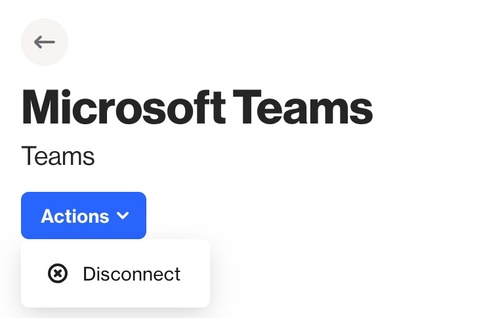
You can also disconnect the data source by clicking Actions > Disconnect.
Learn more about the data source view under Managing data sources.
Using Microsoft Teams
Integrating with Microsoft Teams lets you send notifications directly to channels within your organization. It enables automatic alerts about customer interactions, reminders to follow up on leads, and the ability to share links to dynamic reports right within Teams.
Journeys
In a journey, you can add an action to send a Teams message to a relevant channel. To do this, follow these steps:
- In the journey editor click the + button to add a new shape.
- Select Action > select Send Teams message.
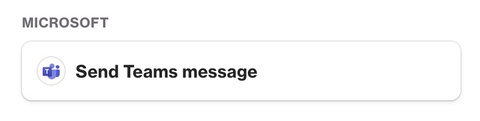
Send Teams message action shape. - Configure the Send Teams message by selecting the relevant Team and Channel from the dropdown menu.
- By default, the action occurs only once unless the More than once option is selected in the This action can occur section.
- The shape is also configured to allow individuals who fail the action to continue through the journey. You can change this behavior in the If this action fails section by selecting Person will exit journey instead.
- To test the action, click Test action and select either a random person from the CDP or a search and select a specific person.
- Once you've completed the setup for the Send Teams action shape, click Save.
Capture form submissions
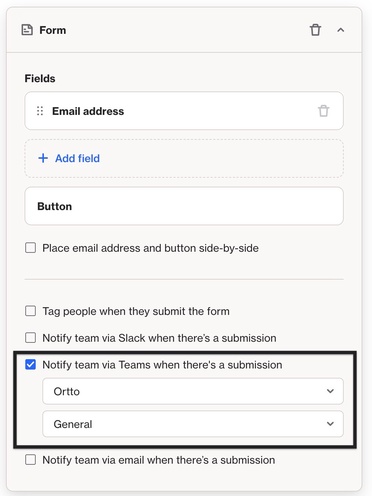
With a Teams integration, you can automatically send a notification whenever a widget form is submitted. To set this up, follow these steps:
- Create a capture widget that has a Form content block. Learn more about creating a capture widget.
- Select the option to Notify team via Teams when there's a submission.
- Select the appropriate Team and Channel from the dropdown menu.
- Click Save & publish to save the changes.
Dynamic reports
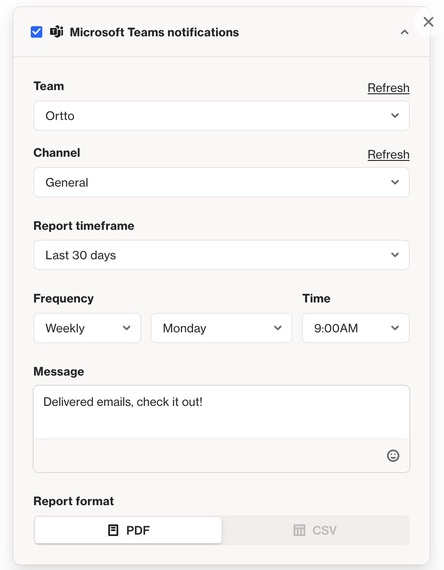
When integrated with Teams, you can send automatic updates from dynamic reports directly to the appropriate channel. The message will include any messages you've configured, an image of the report, and a link to view the report.
To enable Teams notifications, follow these steps:
- Go to the Reports page and click on the report you want notifications for.
- In the report view, select More > Notifications > Microsoft Teams Notifications.
- Configure your settings:
- Choose the appropriate Teams account.
- Select the correct Channel you want to send the notification to.
- Choose the Report timeframe.
- Set the Frequency (daily, weekly, monthly), Day and Time. This will follow the timezone in your account settings (under Settings > General > Timezone)
- Optionally, add a message for your team.
- Click Save changes.