
Troubleshooting Liquid
Overview
Liquid is a template language, created by Shopify, that Ortto uses to show different content to different contacts in your email, SMS and push notifications.
Liquid follows strict rules, so a missing character or a hidden space can cause an error. This guide helps you read the most common Liquid errors in Ortto, find the cause and fix it.
NOTE: This guide doesn't cover every possible Liquid error.
Prerequisite
Liquid is an advanced feature. Before you fix an error, make sure you know:
- What the Liquid should do. For example, show a discount only to contacts in a certain audience.
- Which field or activity attribute it uses, and what type it is (text, number, date).
- A test contact that should match your condition, and one that shouldn't.
New to Liquid? Start with:
How to read an error message
Most Liquid errors share the same layout:
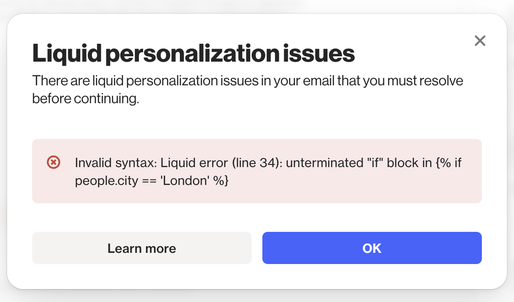
TIP: You may see more than one error at once. Start with the first one, fix it and test again. One fix can clear several errors.
Part | What it means |
|---|---|
Invalid syntax | Ortto's general label for any Liquid problem. It isn't a separate error. The detail after it tells you what's wrong. |
(line 34) | The line in your email's code where Liquid is being read as invalid. |
Unterminated "if" block | What's wrong. |
{% if people.city == 'London' %} | The statement Liquid was reading when it stopped. Search your email for this to find the problem. |
What the line number means
The line number refers to the email's underlying code, not the lines you see in the editor, so you can't match it to your email. Exporting the HTML won't give you a line-for-line match either.
Instead, search your email content for the statement shown at the end of the error. That's the section Liquid was reading when it stopped.
Find the statement in your email
These steps use Google Chrome as an example.
- Copy the statement shown at the end of the error message or a key reference.
- In the email editor, open your browser's search:
- Mac: Cmd + F
- Windows: Crt + F
- Paste the statement into the search bar and press Enter. Chrome highlights each match on the page.
- Press Enter again to move to the next match. This is helpful as your content increases in size.
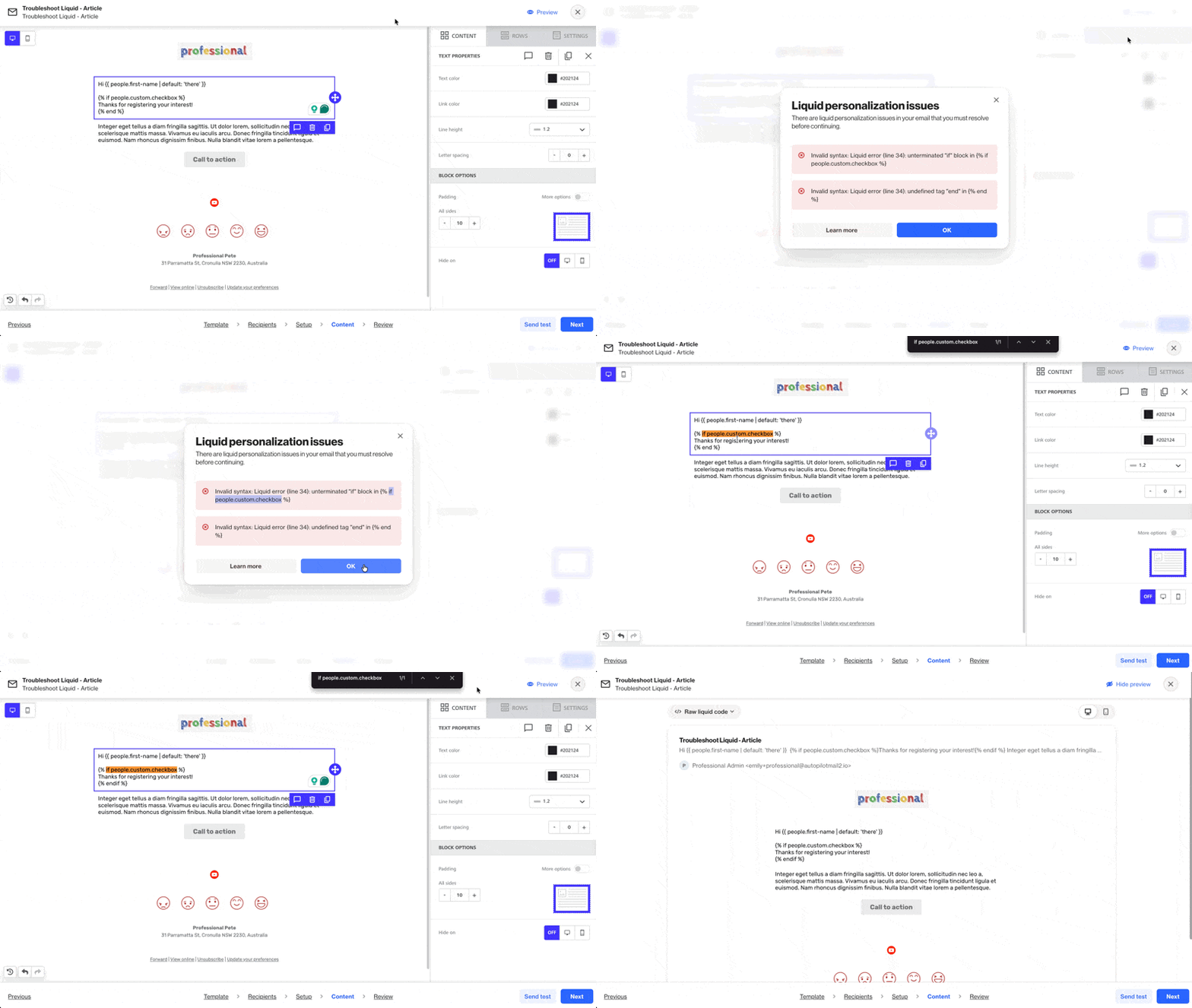
TIP: Can't find the statement in your email? Liquid used in a dynamic row's display condition doesn't appear in the email body. Check each dynamic row.
Quick fixes
Most Liquid errors come down to a few common causes. Try these first.
Quick fix | Why |
|---|---|
Check your spelling and spacing. Look at tag names ( | A misspelled tag, or a gap inside |
Retype, don't paste. Delete the statement and type it again, or paste as plain text (Cmd + Shift + V on Mac, Ctrl + Shift + V on Windows). | Copied text carries hidden formatting that Liquid can't read. |
Close every block. Each | An open block is the most common cause of errors. |
Test it on its own. Try the statement in an otherwise blank text block. | Ortto checks the whole email, so one broken statement can cause errors elsewhere. |
NOTE: Content blank, but no error? The contact you’re previewing may have no value for that merge tag, or, depending on how your campaign is set up, activity merge tags may only use data from the last 30 days. See Liquid and activity data.
Still seeing an error? Find it in the next section.
Common errors
Object not found
What you'll see
Object not found
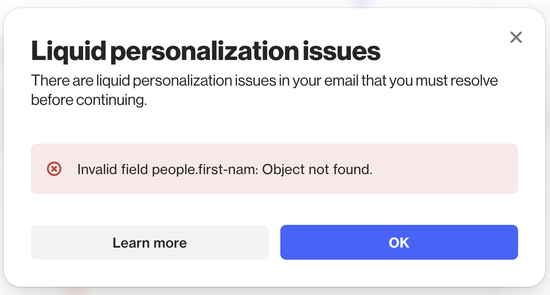
Why it happens
- The merge tag is misspelled or doesn't exist.
- The merge tag isn't lowercase. Ortto only supports lowercase merge tags in Liquid.
- A default value is missing its quotation marks.
How to fix it
- Manually correct the missing character.
- Delete the merge tag and re-add it using the Insert merge tag.
- Wrap default values in quotes.
Incorrect example: people.first-name is missing the e in name.
{% if people.first-nam %}
Correct example:
{% if people.first-name %}
TIP: If your default text includes an apostrophe, use double quotes instead:
{{ people.external-id | default: "Oh no! Looks like you don't have a member number." }}
Invalid syntax: syntax error in "…"
What you'll see
Invalid syntax: syntax error in "…"
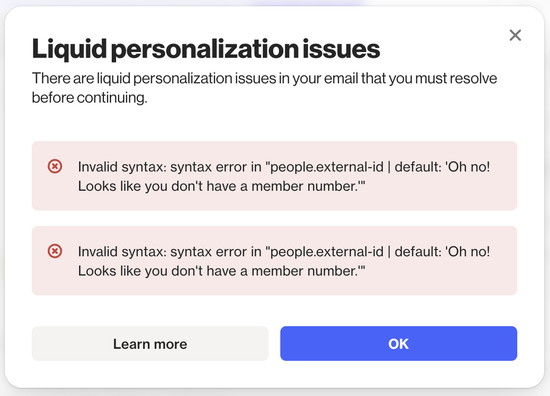
Why it happens
Liquid stopped part-way through your statement because something didn't follow its rules. The text in the error shows where. Common causes:
- A quotation mark problem. An apostrophe inside text wrapped in single quotes ends the text early.
- A missing or extra character. For example,
{{ people.first }instead of{{ people.first-name }}. - Pasted formatting. Copied text can carry hidden formatting. You may see HTML in the error, such as
</code>orfont-family.
How to fix it
- Find the text shown between the quotes in the error. Liquid stopped reading there.
- Check your quotation marks. If your text contains an apostrophe, wrap it in double quotes instead.
- Check each statement opens and closes properly:
{{ }}for output and{% %}for logic. - If you pasted the statement, delete it and retype it, or paste as plain text (Cmd + Shift + V on Mac, Ctl + Shift + V on Windows).
Undefined tag
What you'll see
undefined tag in "…"
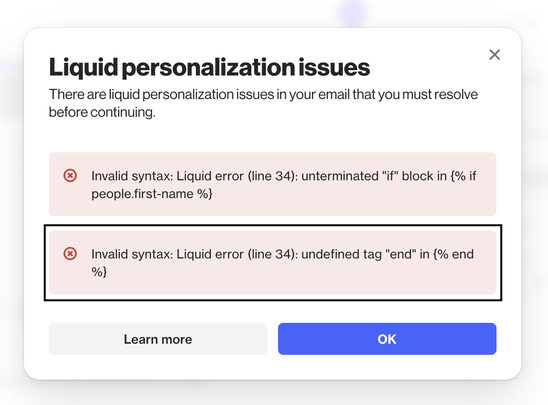
NOTE: This error can appear alongside others. In this example, a closing tag that Liquid doesn't recognise leaves the if block open, so you may also see Unterminated "…" block. Fix the closing tag, then test again. The second error often clears at the same time.
Why it happens
Liquid doesn't recognise a tag. This usually happens when a block is closed with a shortened tag, such as {% end %}. Each block has its own closing tag, for example:
Opening tag | Closing tag |
|---|---|
|
|
|
|
|
|
|
|
How to fix it
- Find the tag named in the error.
- Replace it with the full closing tag for your block.
- Check the spelling of the tag.
Incorrect example: the closing tag is missing if.
 {% if people.custom.checkbox %}
Thanks for registering your interest!
{% end %}
Correct example:
 {% if people.custom.checkbox %}
Thanks for registering your interest!
{% endif %}
Unterminated if block
What you'll see
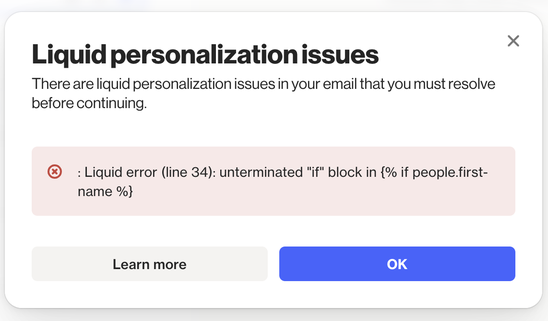
unterminated "if" block in {% if … %}
Why it happens
The {% if %} was opened but never closed. Common causes:
- The
{% endif %}is missing completely. - The closing tag is incomplete, such as
{% endif }(missing%). - The closing tag has spaces inside its brackets, such as
{ % endif % }. - The
{% endif %}is missing from one of your dynamic rows. - The tag is misspelled.
How to fix it
- Search your email for the statement shown at the end of the error.
- Check that it has a matching
{% endif %}and that the tag is spelled correctly. - Check each dynamic row's display condition.
Incorrect example: The endif is missing %}:
 {% if people.first-name %}
Hi {{ people.first-name }}
{% else %}
Hi there
{% endif }
Correct example:
 {% if people.first-name %}
Hi {{ people.first-name }}
{% else %}
Hi there
{% endif %}
Endif not inside in {% endif %}
What you'll see
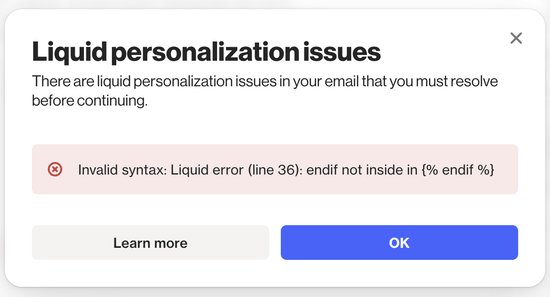
endif not inside in {% endif %}
Why it happens
Liquid found an {% endif %} but couldn't read the {% if %} it belongs to. This can be caused by a misspelled tag, spaces inside the brackets (such as { % if % }), or hidden characters or pasted formatting around the if. It can happen when you copy Liquid from another email, a document or a website.
How to fix it
NOTE: First, check your statement for spelling mistakes and for spaces inside the brackets.
- Delete the whole statement, from
{% ifto{% endif %}. - Type it again. Don't paste it.
- Check there's only one
{% endif %}for each{% if %}. - Test it on its own in a blank text block.
TIP: Want to see the hidden characters? See Find hidden characters.
Incorrect example: the endif is missing an opening if.
 {% people.country == 'Australia' %}
Welcome {{ people.first-name }} 🇦🇺
{% endif %}
Correct example:
 {% if people.country == 'Australia' %}
Welcome {{ people.first-name }} 🇦🇺
{% endif %}
Elsif or else after endif
What you'll see
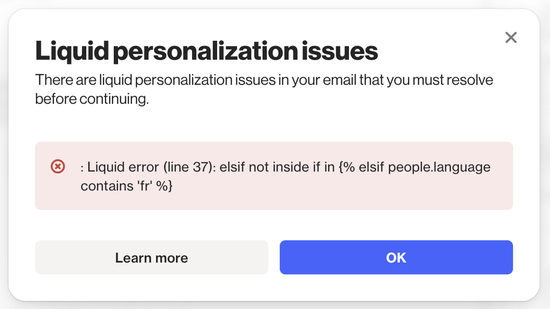
elsif not inside if in {% elsif … %}
Why it happens
The elsif and else must sit inside the if block, before the {% endif %}.
How to fix it
Move {% elsif %} and {% else %} above the {% endif %}, so they sit inside the if block.
Incorrect example:
 {% if people.language contains 'es' %}
Spanish content
{% endif %}
{% elsif people.language contains 'fr' %}
French content
{% endif %}
Correct example:
 {% if people.language contains 'es' %}
Spanish content
{% elsif people.language contains 'fr' %}
French content
{% else %}
Content for all other languages
{% endif %}
Liquid and activity data
Activity merge tags, such as {{ activity.custom.booked-flight.destination }}, can show blank or unexpected content without an error. This depends on which activity the merge tag uses and how old it is.
Where your Liquid is used | Which activity |
|---|---|
Most campaigns, such as a one-off email or SMS, or a Journey that doesn't start with occurs | The contact's most recent activity. Only data from the last 30 days is available. |
A Journey that starts with "x activity occurs" | For the entry activity, the activity that triggered the contact's entry, even if newer activities have happened since. |
A Journey that starts with "x activity occurs" and has a merge tag strategy | For a different activity, the one that matches the entry activity on a shared attribute, such as an ID. |
TIP: If your Journey starts with "x activity occurs", you can set a merge tag strategy to link merge tags from other activities to the entry activity. See Setting a merge tag strategy for a journey.
Test your Liquid
Test after each statement you add. If an error appears, you know which statement caused it.
- Build it in a text block first. Dynamic rows convert their settings into Liquid. A text block shows you the statement, so it's easier to check.
- Keep it on its own. While testing, make the statement the only Liquid in the email.
- Preview with a test contact. Choose a contact you know matches your condition, then one that doesn't.
- Find matching contacts. On the People page, build a filter using the same field or attribute as your merge tag. Compare contacts who match with those who don't.
- Send a test email to see the final result.
Check your merge tags
Liquid combines merge tags with logic, so your merge tags need to be correct. You can check them two ways.
Option 1: Insert merge tags
- Click inside a Text block in the email editor.
- Click Insert merge tag.
- Choose a field, activity attribute or audience.
- Click Add. The merge tag appears in Liquid syntax, ready to copy or build on.
Option 2: The fields page
- Go to Settings > Customer data > Fields.
- Open the field you want to use.
NOTE: Merge tags in Liquid must be lowercase.
TIP: Activity merge tags only use recent data, and journeys behave differently from one-off campaigns. If your content is blank, see Liquid and activity data.
Find hidden characters
This section is advanced. Deleting and retyping your Liquid fixes most issues without it.
Hidden characters, such as extra spaces, can break your Liquid. You can't see them in the editor, but your browser's developer tools can. These steps use Google Chrome.
- Right-click your Liquid statement in the editor and select Inspect.
- In the Elements panel, find the highlighted code around your statement.
- Look for
(a non-breaking space),<span>tags orstyle=inside the statement. - Delete the statement in the editor and retype it.
Shortcut to open developer tools: Cmd + Option + I (Mac) or Ctrl + Shift + I (Windows).
NOTE: Seeing <code> or next to a merge tag added with Insert merge tag is normal. Look for them inside a statement you've pasted.
Liquid support and resources
Liquid is an advanced feature, and our support team may not be able to review and clarify every error. It’s best suited to those familiar with syntax, or who understand how it works.
Ortto resources
Learn more about Liquid
If you're still having trouble after trying these steps, our support team is here to help! Email us at help@ortto.com or submit a support ticket from your account.