
Microsoft selective sync
This feature is currently in its beta phase. If you have any feedback, questions, or issues, please contact our support team.
Overview
The Microsoft Dynamics Selective sync allows you to customize which Microsoft data syncs in to Ortto. This feature helps manage data flow by letting you choose specific objects, fields, or records to sync, ensuring you only transfer relevant information.
If you haven't connected to Microsoft yet, you can do so by following this guide.
Accessing Microsoft selective sync
To access selective sync, go to CDP > Data Sources > Microsoft.
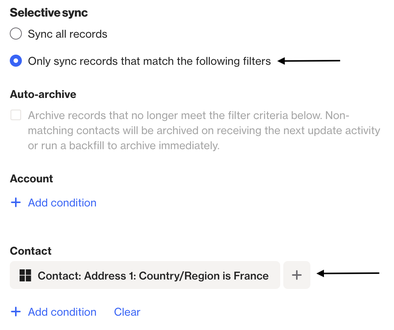
Selective sync
Contacts and Accounts
- Contacts and Accounts are filtered separately in Ortto.
- Ortto does not require that Accounts have associated Contacts to be synced. This means you may have Accounts with no related Contact records.
Primary selective sync
The primary selective sync that determines which People sync to Ortto is based off of the Contact object.
NOTE: It's not possible to use a custom object to selectively sync a contact.
Modifying selective sync
When you update the selective sync criteria in Ortto, the changes will be applied during the next 15-minute poll cycle. This means that any adjustments you make to the criteria will not take effect immediately but will be reflected after the system performs its routine data sync check.
Auto-archive
Auto-archive affects records that have Microsoft data merged, including those not originating from Microsoft.
Auto-archive settings
- If auto-archive is enabled:
- Records not meeting the sync criteria will be archived.
- If auto-archive is disabled:
- Records that no longer meet the criteria will continue to be updated and merged with inbound Microsoft data, but will not be archived.
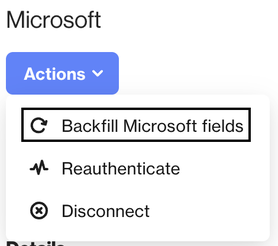
NOTE: If the auto-archive option was enabled after the contacts had already been synced, or if the selective sync criteria was changed, existing contacts will not be archived automatically. To archive existing records that no longer meet the selective sync criteria, you will need to perform a backfill.
To perform a backfill, click Actions > Backfill Microsoft fields.
What happens if a previously auto-archived person re-meets the selective sync criteria?
If a person was previously auto-archived for no longer meeting the selective sync criteria but later meets the criteria again, they will be synced back into Ortto. However, they will be added as a completely new record with a new contact ID, separate from their previously archived record.