
Triggering a widget from a landing page link
Overview
You can configure any button or link on an Ortto landing page to open a capture widget - such as a pop-up form - when clicked. This is useful when you want to present a sign-up form, lead capture, or any other widget in response to a specific user action on the page.
The setup requires two steps: configuring the button/link on the landing page to carry the correct attribute, and setting the widget to trigger when that element is clicked.
How to configure
Step 1: Configure the button on your landing page
Open the landing page in the Ortto builder and select the button or link element you want to use as the trigger. In the right-hand settings sidebar, scroll to the very bottom of the options panel and locate the Attributes section.
Inside Attributes, add a new attribute with the following settings.
- Name:
id - Value:
your-value
Replace your-value with a value of your choice, for example, cta. This is the identifier your widget will listen for.
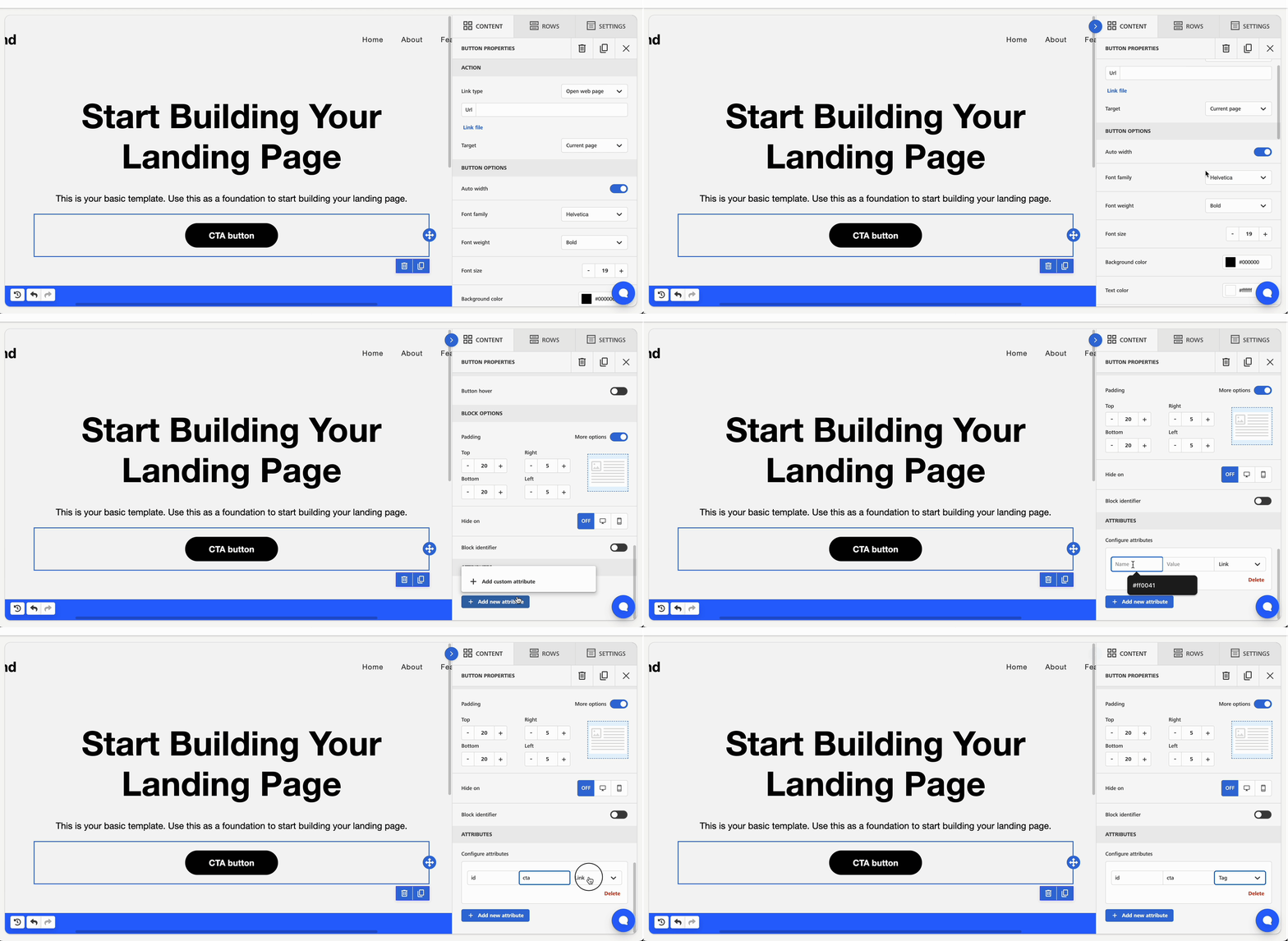
IMPORTANT: Change the dropdown from the default link to tag - setting the type to tag ensures the button does not navigate anywhere when clicked, so the widget can handle the interaction instead.
Learn more about creating a landing page.
Step 2: Configure the widget trigger
Open the capture widget you want to display and go to the Settings tab. Scroll down to the Trigger section.
Under Show the widget select When an element is clicked. Enter the same attribute value you defined on the landing page button in Step 1. For example, #cta.
NOTE: When referencing IDs, add a # prefix. For example, if the ID is cta, use #cta in the widget settings.
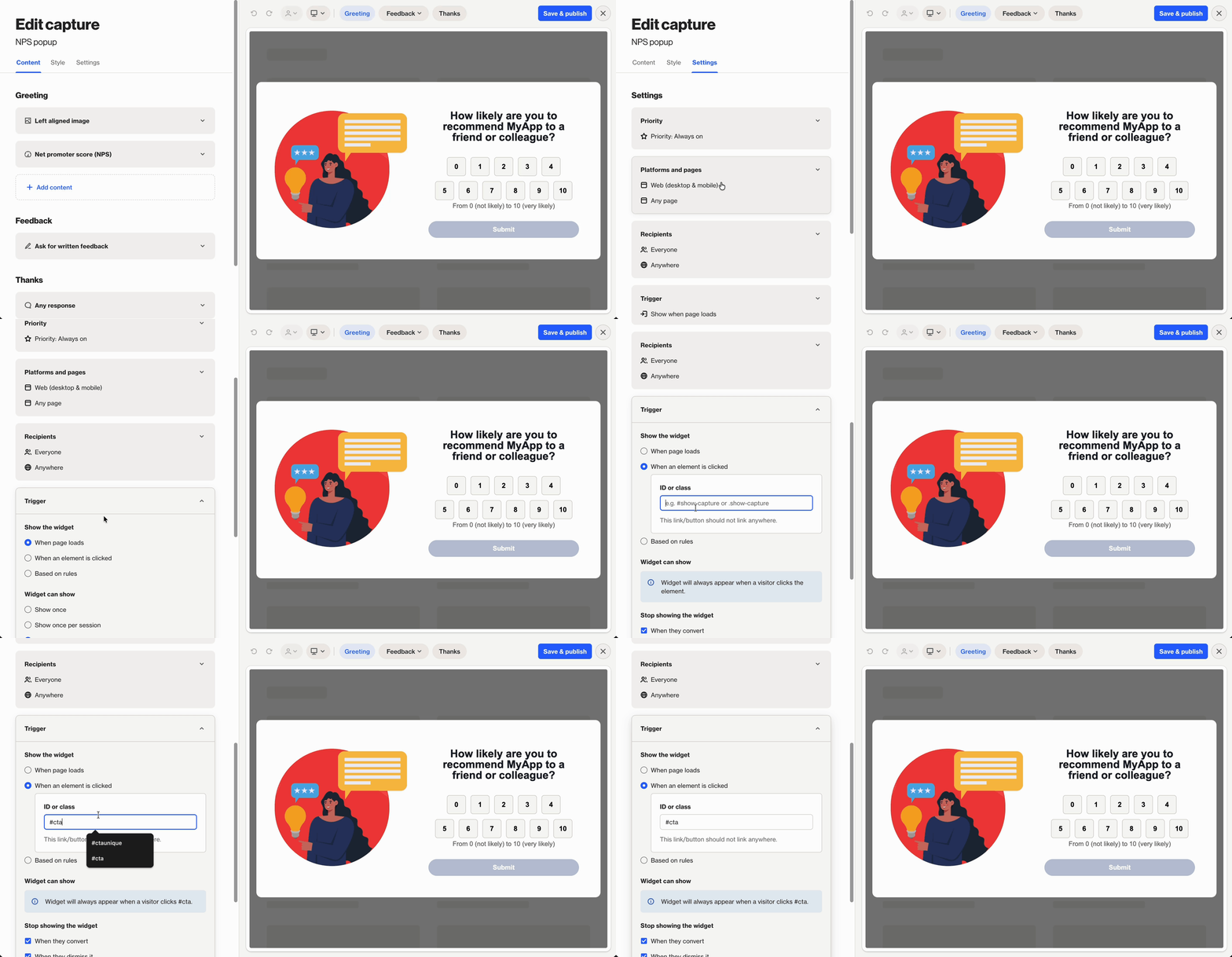
Save your widget settings. When a visitor clicks the configured button on your landing page, the widget will now open automatically.
Learn more about creating a capture widget.
Things to keep in mind
- The attribute value entered on the button must match exactly what is entered in the widget's ID field.
- The widget needs to be switched on.
- The widget will only trigger on pages where the matching element exists.
- Make sure the widget's platform, page targeting, and recipient settings in the Settings tab are configured to cover your landing page.