
Google Cloud Storage integration
Overview
The Google Cloud Storage integration allows users to automatically sync activities and fields to their buckets every 6 or 12 hours, or on a daily or weekly basis. This streamlines external data storage and supports downstream integrations with other platforms and services.
NOTE: The Google Cloud Storage integration is only available on the Enterprise Plan.
Accessing Google Cloud Storage
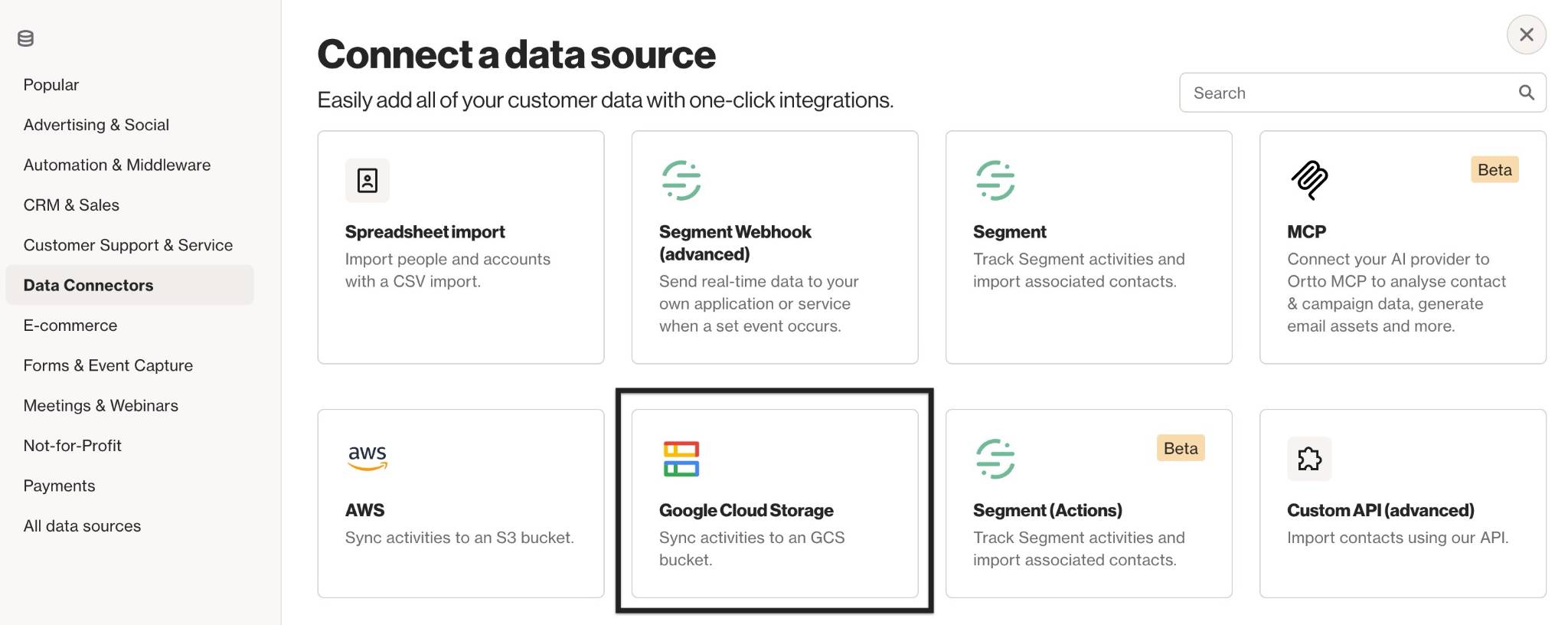
To access the Google Cloud Storage integration page, go to CDP > Data sources > New data source > Google Cloud Storage.
Prerequisites
- Google Cloud account: You need a Google account associated with a valid Google Cloud account to use this integration.
- Dedicated GCP bucket: While not required, we recommend creating a dedicated GCP bucket for Ortto.
Google Cloud Storage set up
The setup of this integration involves three main steps: Setup, Activities, and Fields. Follow the steps below to complete the setup.
Setup
Choose the relevant Connection method:
- Federated identity: This approach establishes a secure trust relationship between your GCP project and Ortto using Workload Identity Federation. It removes the need for static credentials which provides stronger security. Learn more about Workload Identity Federation.
- Service account credentials (JSON upload): This approach is easier to set up, but not as secure as compared to connecting via federation. You will need a Service Account Key Admin IAM role on the project and enable the Google Cloud Storage API. Learn more about how to upload service account keys.
Federated identity setup
Enter the required information in the Federated identity setup section in Ortto:
- GCP project ID: A unique, user-defined string used to identify your GCP project (e.g. ortto-marketing). You can find it in the GCP console under Project Info.
- GCP project number: A 12-digit numeric ID for your GCP project. You'll find it in the Project Info section of the GCP console.
- GCS bucket: The Google Cloud Storage bucket where your data will be exported. Use the full
gs://path, including any folder (e.g.gs://your-bucket/ortto/exports).
Service account credentials (JSON upload)
Enter the required information in the Service account credentials setup section in Ortto:
- Upload service account file (.json): Upload your service account file (JSON). You can generate it in the GCP IAM console.
- GCP project ID: A unique, user-define string used to identify your GCP project (e.g. ortto-marketing). You can find it in the GCP console under Project Info.
- GCS bucket: The Google Cloud Storage bucket where your data will be exported. Use the full
gs://path, including any folder (e.g.gs://your-bucket/ortto/exports).
Frequency
Choose how often data is synced to your Google Cloud Storage: every 6 or 12 hours, or on a daily or weekly basis.
Daily exports are triggered at midnight based on the timezone selected in your account’s General settings. Weekly exports are triggered at midnight on Sunday, using the same timezone.
NOTE: To export historical data to Google Cloud as a one-off backfill, please reach out to support.
Activities
On the Activities page, select the activities you'd like to automatically export to your Google Cloud bucket once the export occurs based on the selected frequency.
The maximum number of activities on the Enterprise plan is 100 activities.
Fields
On the Fields page, select the fields you'd like to include in the automatic export. You can select up to 5 fields.
How is data exported to Google Cloud
Data is exported based on the selected frequency. Daily exports send data every 24 hours, while weekly exports are sent on Sundays. The data is exported in Parquet format, with file names similar to: gs://your-bucket-path/[activity-name]-[activity-id]/[timestamp].parquet
You will get one file per activity per database shard.