Tracking email preferences with fields
Overview
With Ortto’s Email Preference Center, you can manage contact subscriptions in two ways:
- Fields, which is the approach covered in this article.
Using fields allows you to control subscriptions based on field values stored on the contact record, rather than audience membership.
IMPORTANT: Using fields means emails will continue to be sent as long as contacts are still subscribed in the system (Email permission = True) and match the criteria you’ve set for a specific email or journey.
Because of this, if you adopt this method, it’s important to always include the relevant permission fields in your filters when sending emails or triggering journeys, to ensure contacts are meant to receive emails related to that "topic".
When to use fields to manage subscriptions
Using fields to manage subscriptions is ideal when subscription preferences are captured or maintained in external systems that are connected to Ortto.
For example, imagine an ecommerce platform where customers can choose to subscribe separately to a newsletter and promotional emails at checkout (using two separate checkboxes). You can use the Ortto API to update two corresponding contact fields, such as Newsletter and Promotions with true or false values based on the customer’s selections.
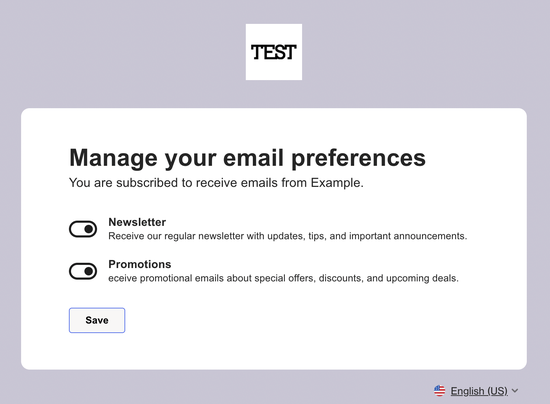
When contacts visit the Email Preference Center, they will see these fields and their current values reflected there, allowing them to subscribe or unsubscribe from each option independently.
Audiences vs. fields for subscription management
With audiences:
- An audience only appears in the preference center if it is enabled.
- A contact will only see that audience if they are already a member of it.
- This means the contact must belong to the audience before it can be managed in the preference center.
With fields:
- All contacts will see the fields you’ve added to the preference center, regardless of their current values.
- There is no requirement for audience membership.
- Field values can be updated via the API, synced from external tools (such as an ecommerce platform), or managed directly through connected data sources like Salesforce.
Using fields provides greater flexibility when subscription preferences are controlled outside of Ortto or need to stay in sync with external systems.
How to use fields in the preference center
To use fields in the preference center, follow these steps:
- Go to Settings > Channels > Email > Preference center.
- Click the Subscriptions tab.
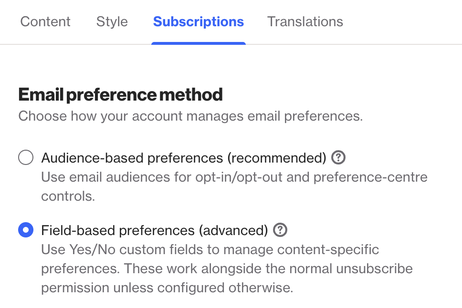
- Select Field-based preferences (advanced).
- Click + Add permission field to add your fields.
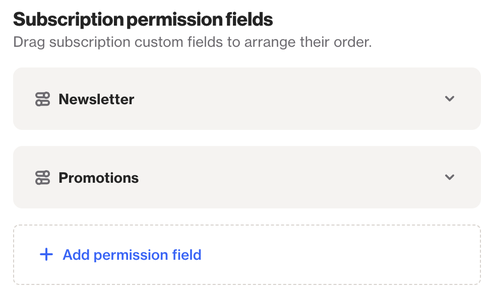
NOTE: Only boolean fields are supported.
All fields you’ve added will now appear in the email preference center for any contacts who visit it.
Syncing field changes to external systems
With this setup, you may want to sync field changes back to your external system so that both Ortto and your system stay up to date through a two-way sync. To sync field changes to external systems, you can use webhooks.
To do this, follow these steps:
1. Create a webhook if you haven’t already.
2. Go to Settings > Customer Data > Fields.
3. Select the relevant field and select Create an activity whenever this field changes.
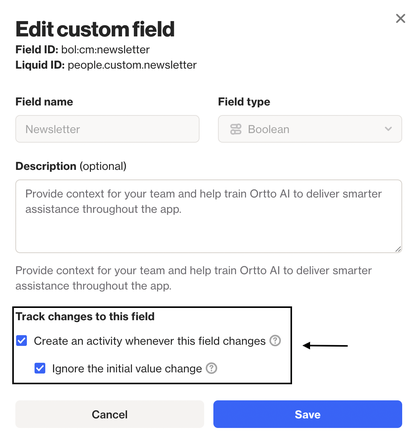
TIP: Optionally select Ignore the initial value change so the activity doesn’t trigger when the field receives its first value. In this case, it will only trigger on subsequent changes.
This creates an activity such as Custom: Newsletter changed. From there:
1. Go to Activities and select the activity.
2. Under Data destinations, select the webhook you created.
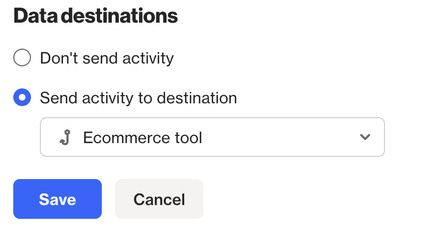
Once this is in place, every time the field value changes (from true to false or vice versa), Ortto will automatically send a webhook to the URL you provided. You can then use this webhook to apply the corresponding update in the external system you’re using.
Field-based permission in journeys
With this system in place, it’s important to note that emails will continue to be sent as long as the contact matches the filter you’ve set and is currently subscribed (Email permission = true).
This is especially relevant for journeys. Emails within a journey will continue to be sent even if the field(s) you’re using later change to a value that should unsubscribe the contact from that journey’s emails.
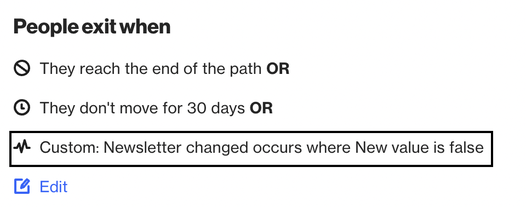
With this in mind, you can set an exit criteria so contacts automatically leave the journey when any of the relevant field(s) change, as shown in the example below.