
Subscriber-level email tracking permission
Overview
- What it is: A new Allow tracking field on every contact that lets you control open and click tracking on a subscriber-by-subscriber basis.
- Why it exists: Regulations introduced in France and Italy in 2026 mean senders need a subscriber's explicit permission before tracking email opens for recipients in certain countries. Ortto built this feature to help you comply with those regulations - but it's available to every Ortto customer, whether or not you have contacts in a regulated country, if you'd like more granular control over tracking.
- What you need to do: Turn the feature on in Settings > Channels > Email > Email, decide how to treat contacts you don't yet have permission from, and give your contacts a way to opt in or out.
NOTE: Compliance with these regulations is your responsibility. Ortto provides the tools to help you honor tracking preferences, but it's up to you to review the regulations that apply to your business and confirm your account setup, capture forms, and sending practices meet your obligations.
Prerequisites
The features to collect tracking permission won't appear in your account until you enable and turn on tracking.
What is subscriber-level email tracking permission?
As of July 2026, France introduced new rules (per CNIL) requiring senders to obtain a subscriber's explicit consent before tracking whether they've opened an email. Italy will introduce similar rules from October 2026 (per Garante). Both sets of rules focus on open tracking, but Ortto's feature covers both open and click tracking, since both rely on similar tracking technology.
This feature isn't limited to contacts based in France or Italy. Any Ortto customer can use subscriber-level tracking permission to give contacts more granular control over what's tracked, regardless of where they're located.
To support this, every contact in your CDP now has an Allow tracking field. This field can be in one of three states:
Value | Meaning |
|---|---|
No value | The contact hasn't yet been asked, or hasn't made a choice either way (this is the starting state for all contacts). |
True | The contact was given the choice and actively chose to allow tracking. |
False | The contact was given the choice and actively chose to opt out of tracking. |
Turning on subscriber tracking permissions
- Go to Settings > Channels > Email > Email.
- Under Tracking, find the new Subscriber tracking permissions option and turn it ON.
- Click Save.
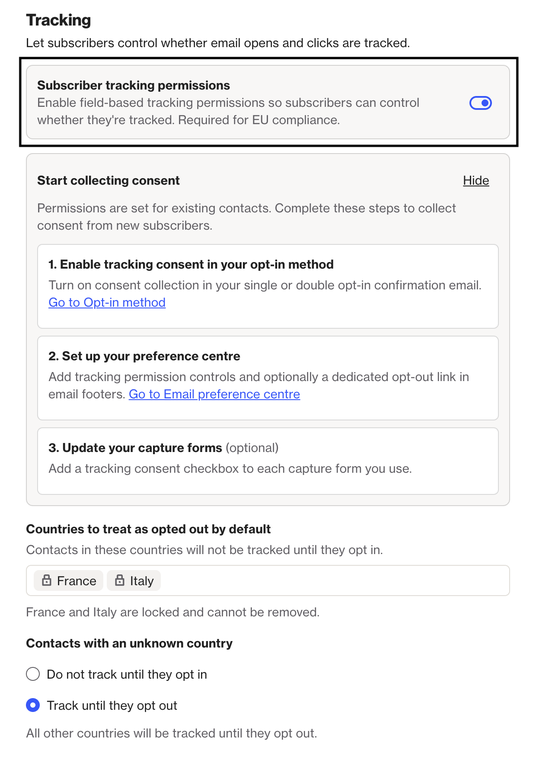
Once turned on, Ortto shows you a summary of recommended next steps, plus two settings that determine how contacts with no value are treated:
- Contacts in France or Italy (based on their country, or last-seen country): Always treated as not having given permission while their permission has no value. This option is locked and can't be changed - it reflects the regulatory requirement.
- Contacts with an unknown country: You can choose whether these are treated as opted in or opted out by default while their permission has no value. This is useful if you want to cover yourself for contacts who might actually be located in France or Italy but you don't have location data for yet.
NOTE: This is an ongoing rule, not a one-time update. Any contact whose Allow tracking field has no value will be evaluated against these country-based settings every time you send - whether that contact was already in your account when you turned this feature on, or is added afterwards. If you change the "unknown country" default later, it applies immediately to any contact who still has no value set. To lock in a specific answer for a contact regardless of future settings changes, use the opt-in methods below to record an explicit True or False for them.
Ways to collect tracking permission from your contacts
You have several options for letting contacts tell you whether they're okay with being tracked. We recommend using as many as make sense for your account. These tools are designed to help support your compliance with tracking consent regulations, but we recommend doing your own due diligence (or consulting legal counsel) to confirm what applies to your business and the regions your contacts are located in.
Capture forms
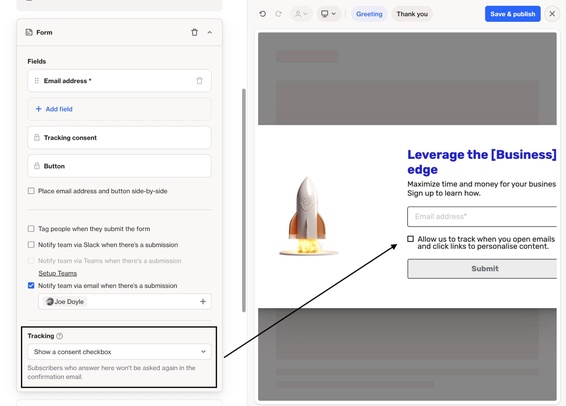
Add a Tracking section to any Capture form so people can opt in or out of tracking when they fill it out.
Preference center
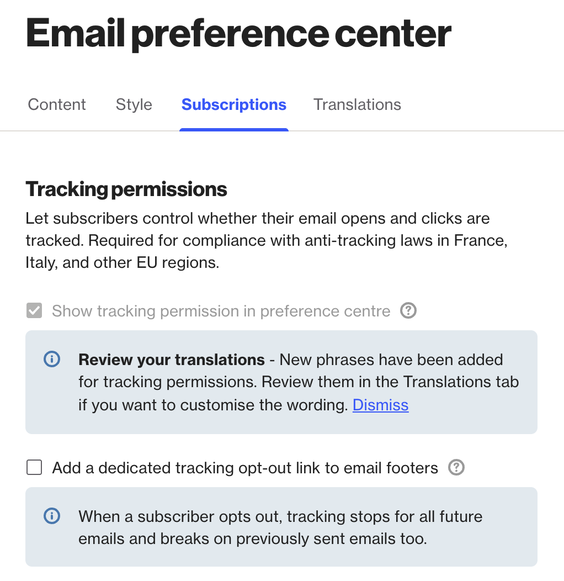
Turn on the option to show a Tracking permission input in your preference center, so contacts can manage their tracking preference alongside their other subscription preferences.
Configure this under your preference center settings.
A dedicated tracking link in your email footer
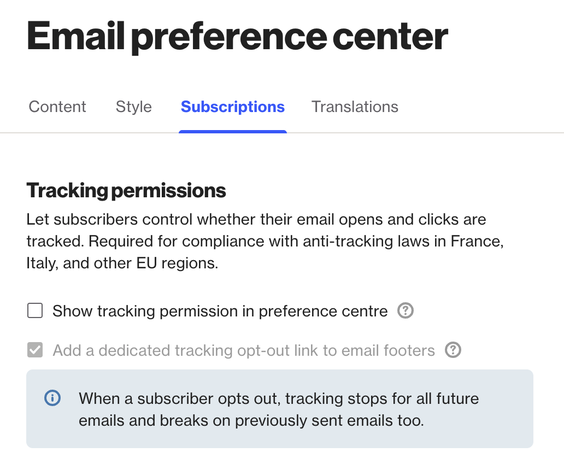
Also in preference center settings, you can add an explicit link just for managing tracking permission in the footer of your emails.
This is a good option because it keeps contacts from unsubscribing entirely just to opt out of tracking.
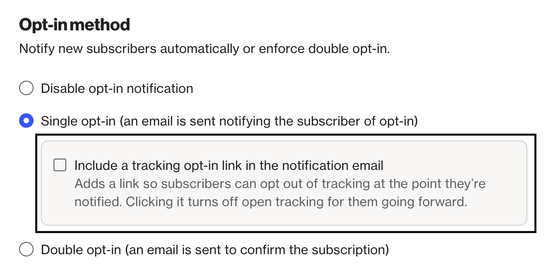
Confirmation (opt-in) emails
If you haven't added the Tracking to your capture forms, you can instead include a link in your single opt-in or double opt-in confirmation emails, letting new contacts opt in or out of tracking as part of confirming their subscription.
Configure this on the same Settings > Channels > Email > Email page where you enabled the feature.
CSV import
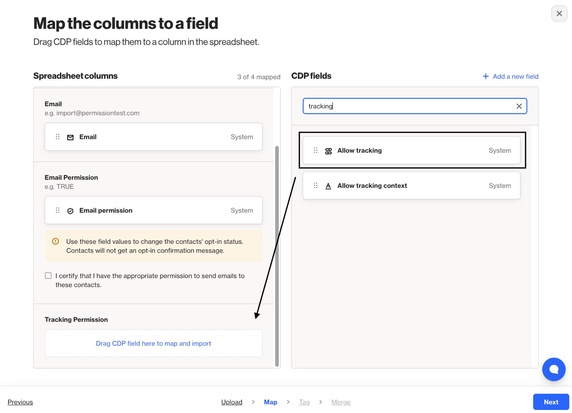
You can set the Allow tracking field directly for a contact by mapping it during a CSV import.
API
You can also set a person's Allow tracking value programmatically using Ortto's API, which is useful if you're managing tracking permissions through an external system or a custom integration.
Learn more in Create or update one or more people (merge).
Viewing a contact's tracking permission
A contact's tracking permission is visible on their profile, under the Subscription status section, alongside their Email and SMS permission fields.
How this affects tracking on your emails
Turning on subscriber-level tracking permission doesn't turn tracking off everywhere - it changes tracking on a per-contact basis. Whether a given contact is tracked depends on both your email's tracking setting and that contact's permission:
Email/campaign tracking | Contact's tracking permission | Contact's country | Unknown country default | Result |
|---|---|---|---|---|
On | True | Any | - | Tracked |
On | False | Any | - | Not tracked |
On | No value | Known, not France or Italy | - | Tracked |
On | No value | France or Italy | - | Not tracked |
On | No value | Uknown | Treat as opted in | Tracked |
On | No value | Uknown | Treat as opted out | Not tracked |
Off | Any | Any | - | Not tracked |
NOTE: There's only one Allow tracking field, and it applies to both open and click tracking - you can't set separate permissions for opens vs. clicks. This also means a single email can have tracking turned on, and some recipients will be tracked while others won't, depending on their individual permission.
Previously sent emails
If a contact does not have permission to be tracked (whether they explicitly opted out, or their permission is unset and their country defaults to no tracking), Ortto will also stop tracking their engagement with emails that were already sent - even if those emails were originally sent with tracking turned on.
Because an already-sent email can't be edited, it will still visually contain the open-tracking image and trackable links. However, Ortto will not record open or click activity for that contact going forward.
Frequently asked questions
Does this replace my existing email permission (subscribe/unsubscribe) setting?
No. Tracking permission is separate from email permission. A contact can be subscribed to your emails, independent of whether they permit tracking or not.
Do I need to turn this on if I don't currently have contacts in countries with tracking regulations?
You can absolutely use this feature even if you don't have contacts in France or Italy - it's available to every Ortto account, not just those covered by the current regulations. Whether you choose to turn it on is up to you: we'd recommend reviewing where your contacts are located and the tracking consent rules that apply in those regions to decide if enabling subscriber-level tracking permission makes sense for your account.