
Canva integration
Overview
The Canva integration allows you to connect your Canva account to Ortto and use eligible Canva email designs when creating emails.
This makes it easier to move from design to delivery without needing to export your email design from Canva and upload it manually into Ortto.
Canva prerequisites
Before using Canva designs in Ortto, make sure:
- Canva is connected to Ortto as a data source.
- The design is a Canva email design.
- The design is a single-page design.
- The design is accessible to the Canva user who connected the Canva data source.
- The design includes an unsubscribe link if it will be used for a marketing email.
NOTE: Ortto respects Canva permissions. Users will only see Canva designs that are accessible to the Canva user who connected the data source.
Connect Canva to Ortto
To connect Canva as a data source:
- In Ortto, go to CDP > Data sources.
- Click + New data source.
- Select Canva.
- Follow the prompts to connect your Canva account to Ortto.
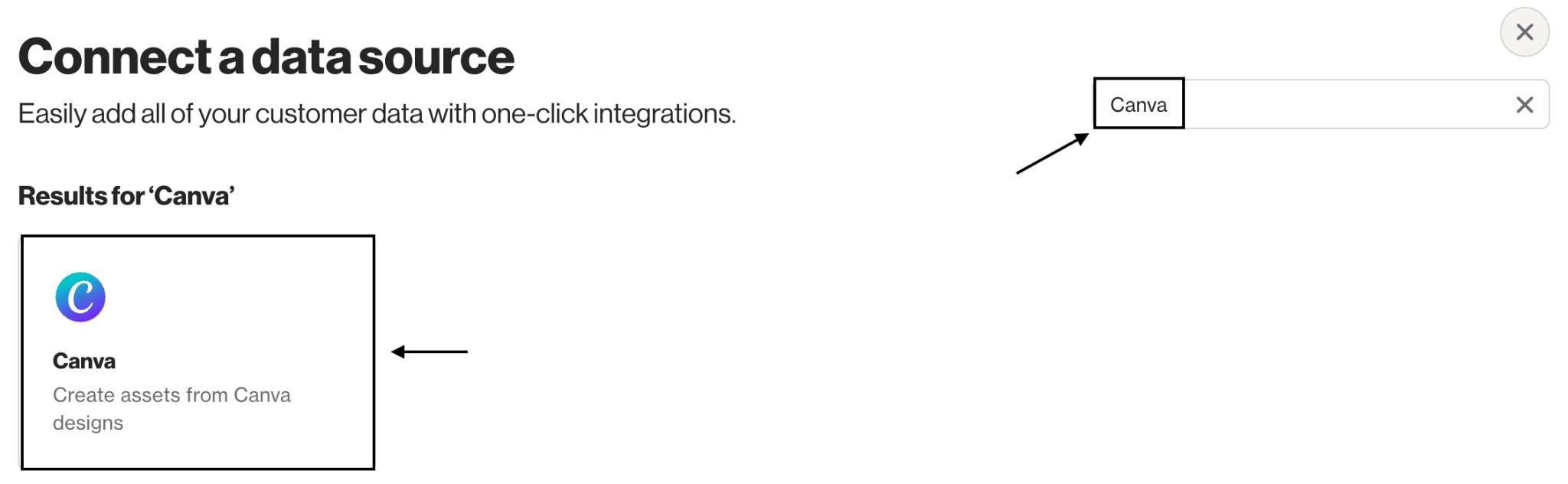
Once connected, Canva will appear as a connected data source in Ortto.
TIP: If you have access to multiple Canva teams, accounts, or workspaces, make sure you connect the Canva account that has access to the email designs you want to use in Ortto.
Use a Canva design in an email campaign
To use a Canva design in an email campaign:
- Go to Marketing > Campaigns.
- Click New campaign.
- Select Email.
- On the template selection step, click the Canva tab in the sidebar.
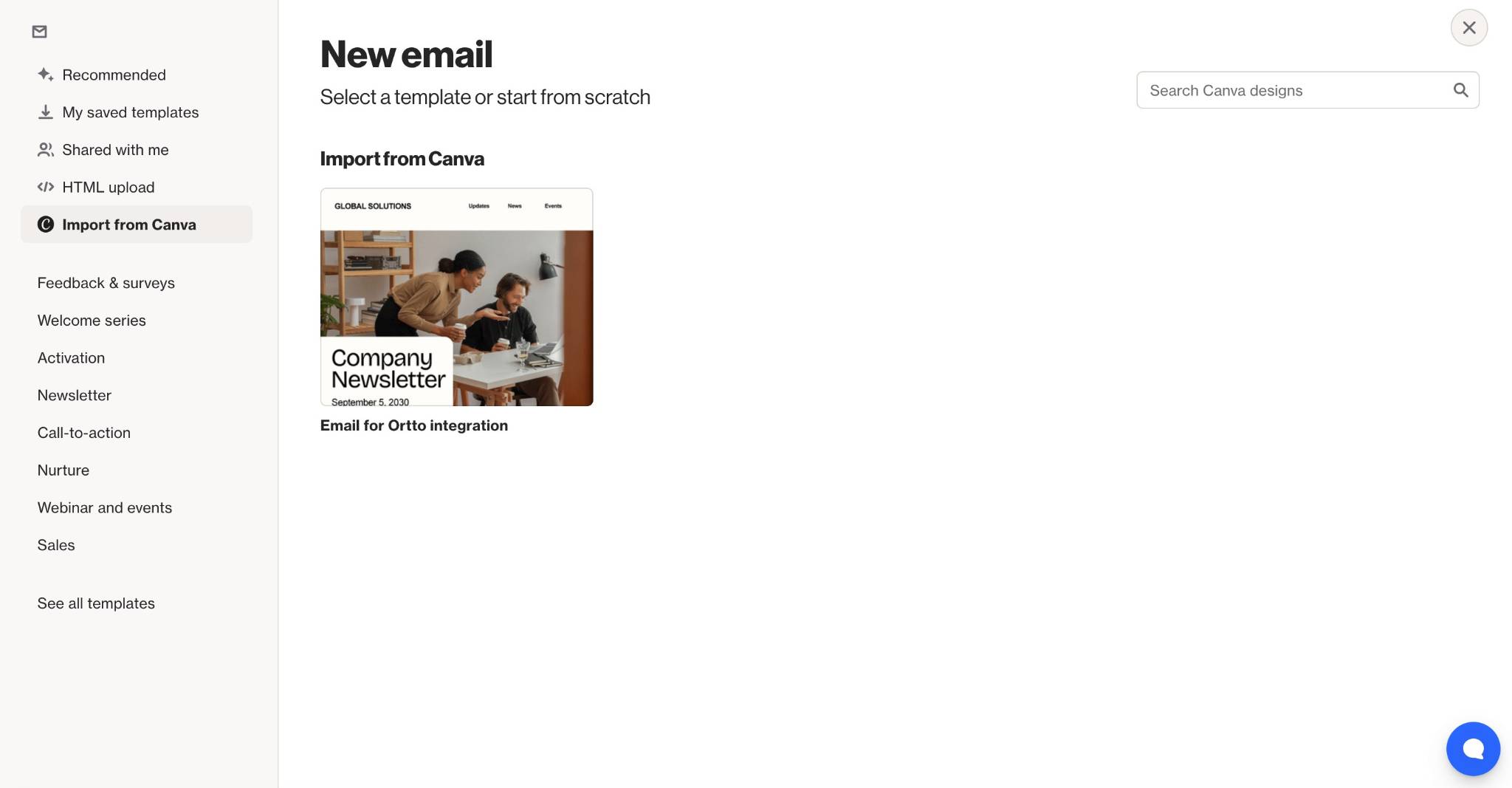
Importing from Canva. - Select the Canva design you want to use.
- Ortto will import the selected Canva design and use it as the layout for your email.
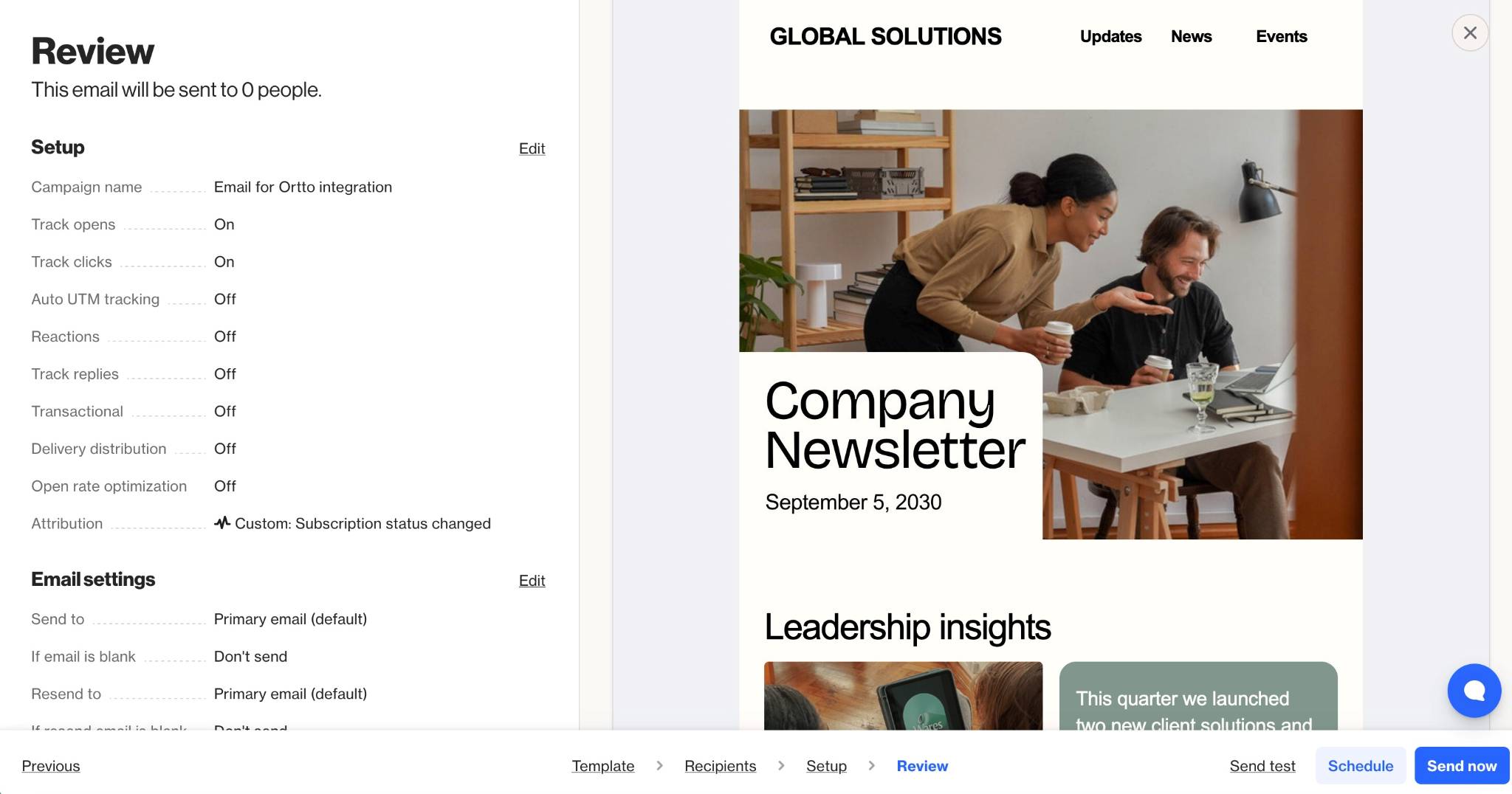
You can then continue configuring your email campaign as usual, including your recipients, setup, content, review, and sending options.
Use a Canva design in a journey email shape
Canva designs can also be used when creating email messages in journeys. To use a Canva design in a journey email shape:
- Go to Marketing > Campaigns.
- Open the relevant journey.
- Add or edit an Email shape.
- Create a new email.
- On the template selection step, click the Canva tab in the sidebar.
- Select the Canva email design you want to use.
- Ortto will import the selected Canva design and use it as the layout for the journey email.
You can then continue configuring and publishing the email shape as usual.
TIP: You can also create an email shape directly in the Asset Manager to use across any journeys. Learn more about the Asset Manager.
How Canva designs are imported
When you select a Canva design, Ortto downloads the design at that moment and imports it into Ortto. The imported design is treated as a static HTML import.
This means that any changes made to the original design in Canva after it has been imported will not automatically update the email in Ortto.
EX: If you import a Canva design called Spring Promotion Email, then later edit that design in Canva, the imported email in Ortto will not update automatically. To use the updated version, you will need to import the Canva design again.
Unsubscribe link requirements
Marketing emails must include an unsubscribe link. Canva automatically inserts an unsubscribe link when you create a Canva email design. If this unsubscribe link is removed or missing, Ortto will not allow the email to be saved or used unless the email is marked as transactional.
NOTE: Only mark an email as transactional if it is genuinely transactional, such as an order confirmation, account notification, or password reset email. Marketing emails should retain the unsubscribe link.
Learn more about transactional emails.
Troubleshooting Canva designs
The Canva tab does not appear
If the Canva tab does not appear during template selection, check that Canva has been connected to Ortto as a data source.
A Canva design is not appearing in Ortto
If a design is not appearing in the Canva tab, check that:
- The design is a Canva email design.
- The design is a single-page design.
- The design is accessible to the Canva user who connected the data source.
- The connected Canva account has the correct permissions to view the design.
NOTE: Ortto will only display eligible Canva email designs. Other Canva design types are not supported.