
Triggering a journey from a Salesforce campaign
Overview
The Salesforce Campaign member status journey trigger lets you enrol members of a Salesforce campaign into a journey. You can trigger contacts who are already in the campaign at the time the journey is activated, as well as contacts who are added to the campaign in the future.
NOTE: This trigger only becomes available when you connect Salesforce to Ortto. If you haven’t already, you can do so by following our guide on the Salesforce integration.
Accessing the trigger
The Campaign member status trigger is available for both new and existing journeys.
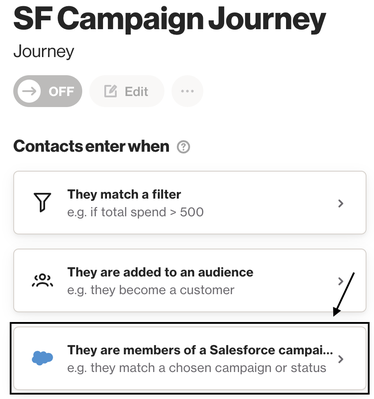
- For new journeys: Create a new journey > Select They are members of a Salesforce campaign:
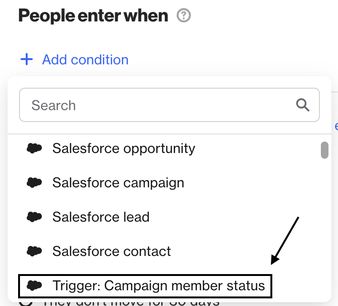
- For existing journeys: Click to add a new condition to the entry criteria > Select Trigger: Campaign member status from the dropdown:
Trigger options
When configuring the trigger, you will be asked to choose how contacts should enter the journey:
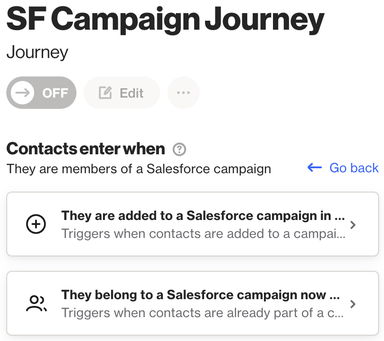
- They are added to a Salesforce campaign in the future: This option only enters contacts who are added to the campaign after the journey is activated. Contacts who are already members of the campaign at that point will not enter.
- They belong to a Salesforce campaign now or in the future: This option enters anyone who is currently a member of the selected campaign, as well as anyone who qualifies later. Contacts who already meet the condition will enter immediately when the journey is activated.
Configuring the trigger
After choosing either option above, the next step is to configure the trigger itself:
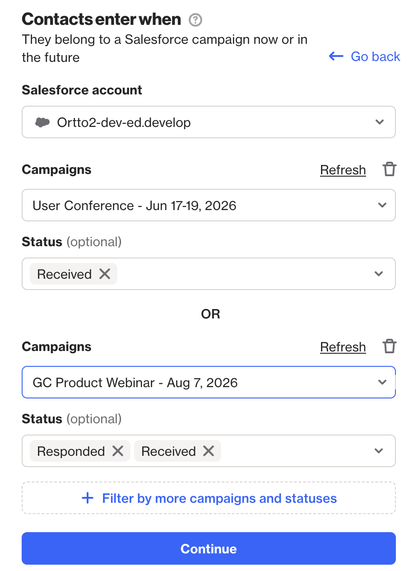
- Salesforce account: Select the Salesforce account where the campaign exists, in case you have more than one account connected.
- Campaigns: Select the Salesforce campaign you want to base this trigger on.
- Status: Select the member status(es) for the campaign that will be eligible (multiple statuses are supported).
If you want to filter by additional campaigns, click + Filter by more campaigns and statuses. If more than one campaign is selected, the journey will trigger when the contact matches the conditions for any of the selected campaigns.
Notes
- The Campaign / Campaign Member objects doesn’t have to be selected in the Salesforce data source for this to work. This is independent of whether the object is actively selected in the data source.
- This feature doesn’t rely on the data retention policy, meaning that as long as your contacts match the trigger conditions, the journey will trigger regardless of when the contacts were added to the Salesforce campaign.
- For a contact to be eligible, they need to exist in your Ortto account. If you have selective sync criteria applied, make sure it isn’t restricting contacts that should be eligible for your campaign trigger.