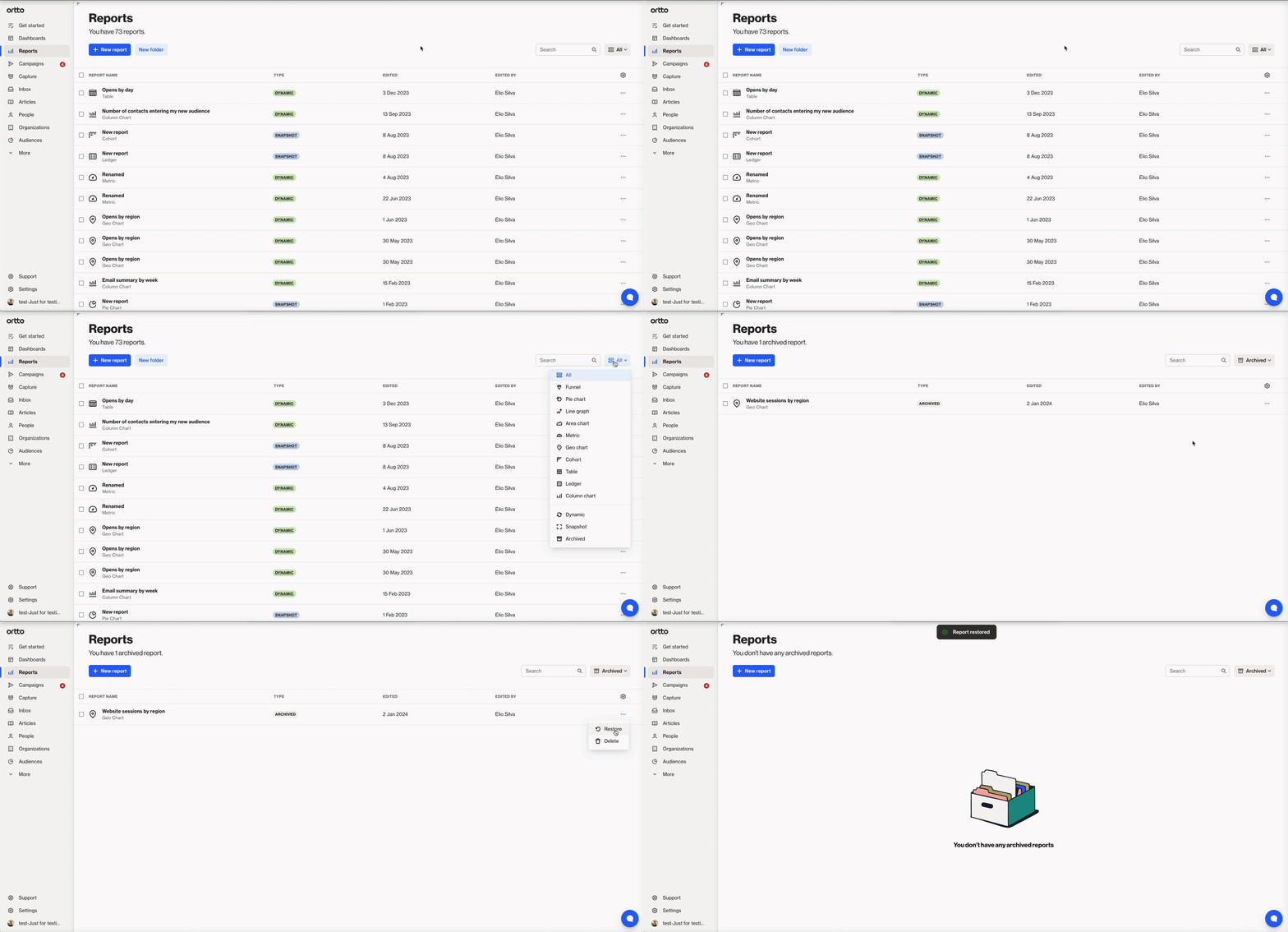
Managing reports
Overview
Once you have created a report, you can view and edit the report, duplicate it, as well as archive and delete it through the Reports page.
View and edit a report
The Reports page shows all your person and account reports. Click on a report to view it in more detail.
The Object column indicates whether the report is a person report or an account report:
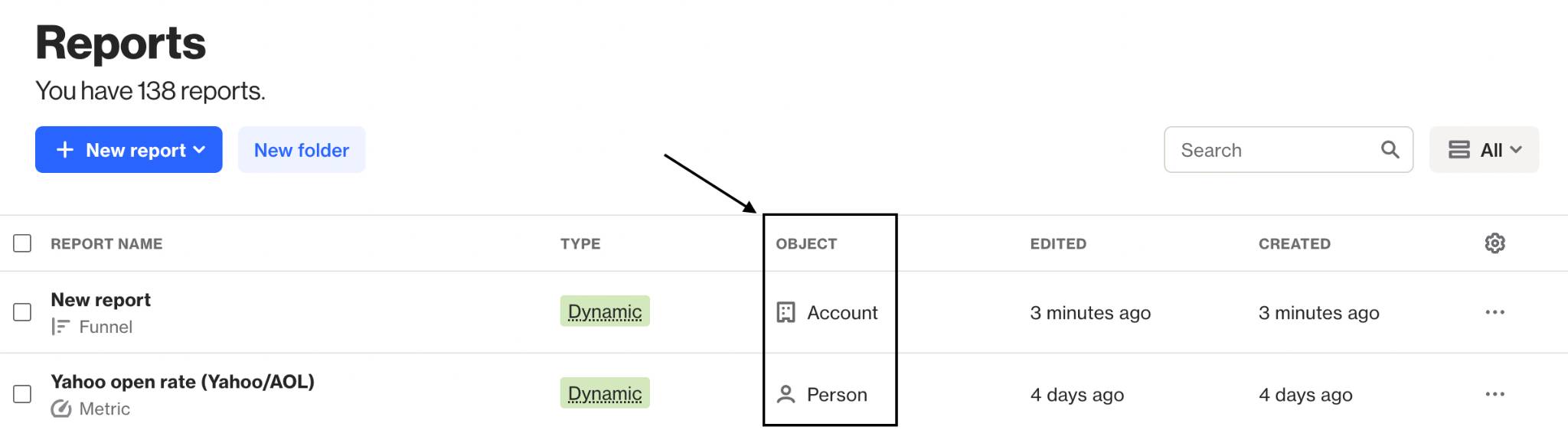
You can also filter the reports you see on this page by clicking All then select the report type you wish to view.
When viewing a report, click:
- Edit to make changes to the report metrics and settings.
- Pin to dashboard to add the report to one of your dashboards.
- More to access a range of sharing and management options.
Receive Email notifications for reports
To set up Email notifications for a dynamic report:
- Go to the Reports page and click on the report you want notifications for.
- In the report view, select More > Notifications > Email.
- Turn notifications ON. Then, configure your settings:
- Choose the Recipients to receive updates.
- Select your Report timeframe.
- Set the Frequency (daily, weekly, or monthly), Day and Time. This will follow the timezone in your account settings (under Settings > General > Timezone).
- Add a subject for the email, and an optional message to include in the body of the email for your team.
- Click Done.
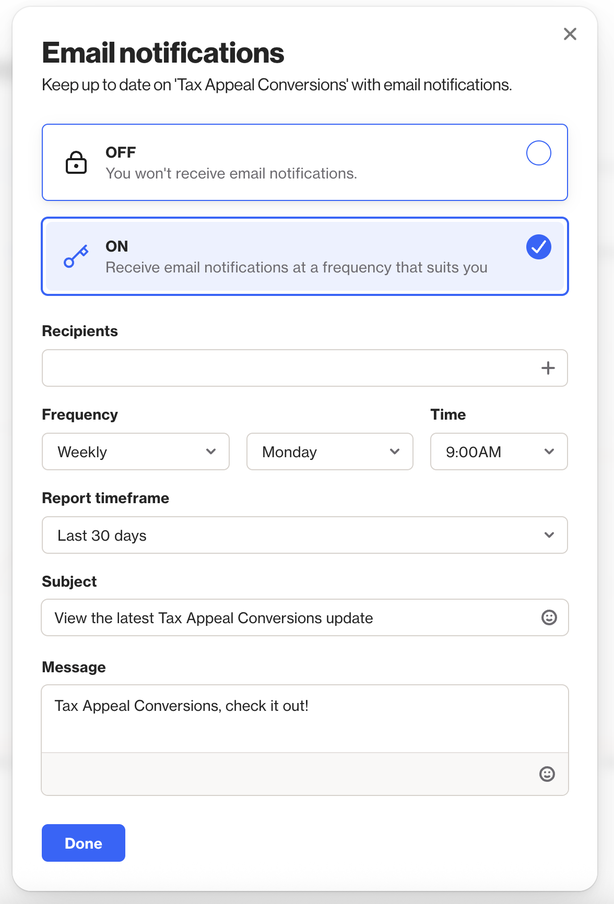
Once set up, the specified recipients will receive Report email summaries at the desired frequency. Each email will include any message you added, an image of your report (except for Ledger and Table reports, which will send a download link instead), and a link to view the full report in Ortto.
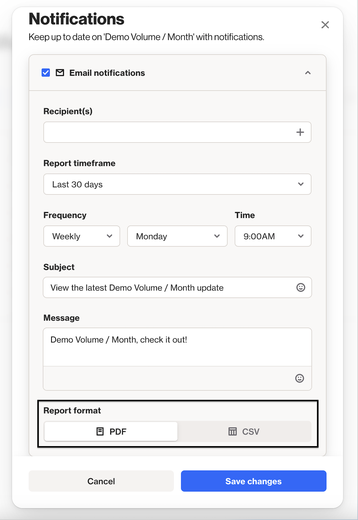
NOTE: When setting up notifications for a Table or Ledger report, users will have the option to select either CSV or PDF format for the report download link.
Receive Slack notifications for reports
When Slack is connected to your Ortto account, you can send updates of your dynamic reports to your preferred Slack channel.
Learn more about receiving slack notifications for reports.
Receive Teams notifications for reports
When integrated with Teams, you can send automatic updates from dynamic reports directly to the appropriate channel. The message will include any messages you've configured, an image of the report, and a link to view the report.
Learn more about receiving Teams notifications for reports.
Archive and delete reports
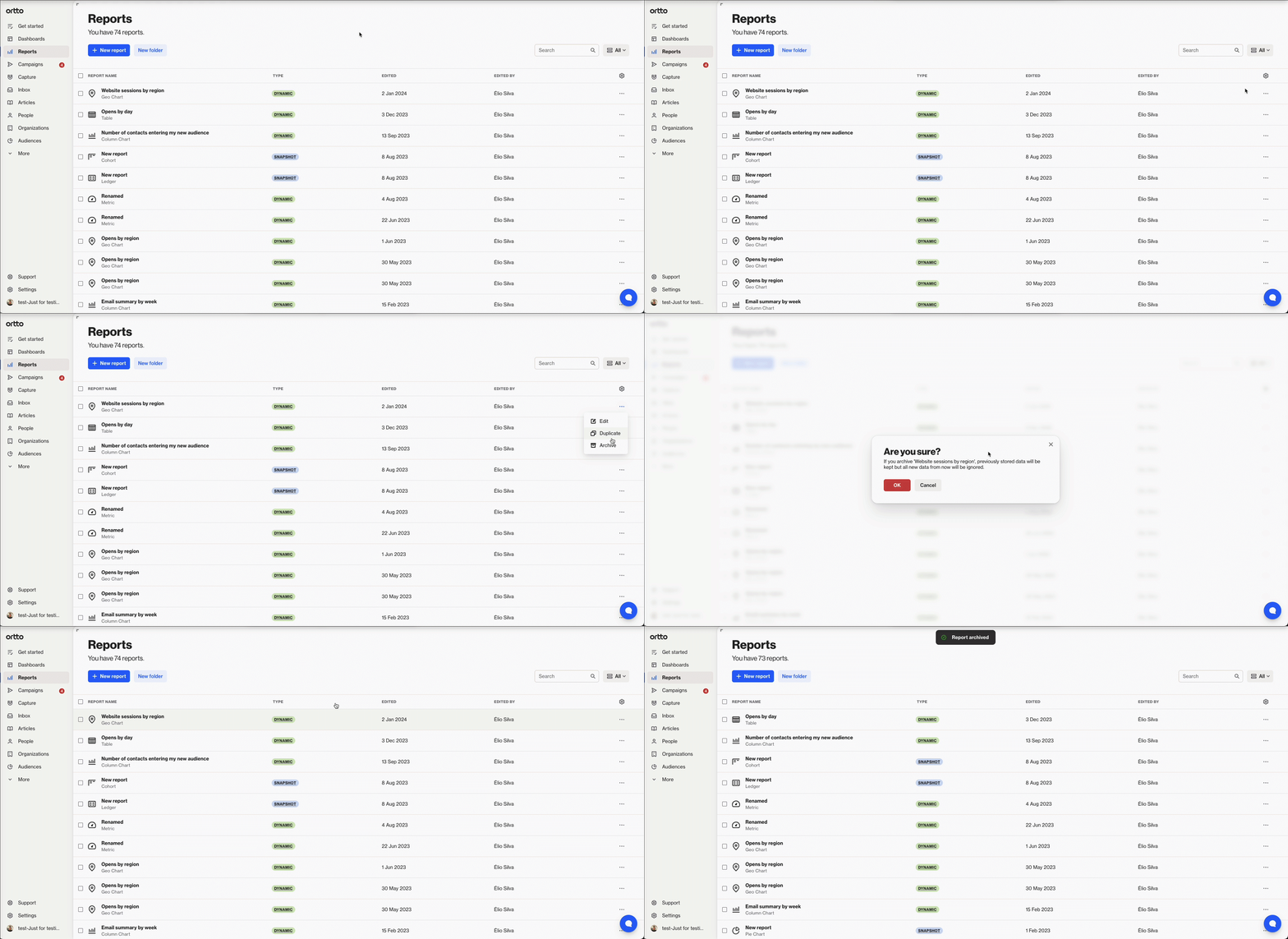
To archive a report:
- On the Reports page, click the more icon for the report you wish to archive.
- Click Archive, then OK to confirm.
Once a report is archived, it can be restored or deleted.
To restore or delete a report:
- On the Reports page, click All > Archived.
- In the archived reports list, select the checkbox or the more icon next to the report.
- Select Restore or Delete as required.