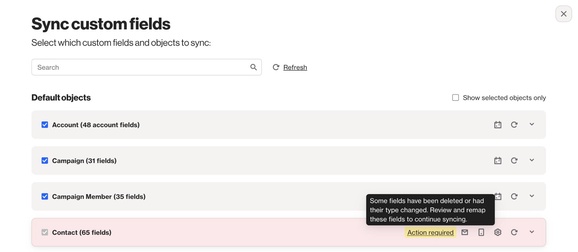
Salesforce fields need your attention
Overview
When Salesforce polls approximately every 15 minutes, if it detects that a field type has been changed or a field has been deleted, a banner will appear in your account and details will be provided on the Salesforce integration.
The message will display: Fields need your attention: One or more Salesforce fields are no longer syncing due to changes in Salesforce. Review the affected fields below.
NOTE: This feature was released on 2 February 2026. If your field update occurred before this date, the object and exact field name cannot be included due to lack of historical reference.
Field statuses
There are two field statuses you can experience depending on the changes made to your Salesforce setup.
Field type change
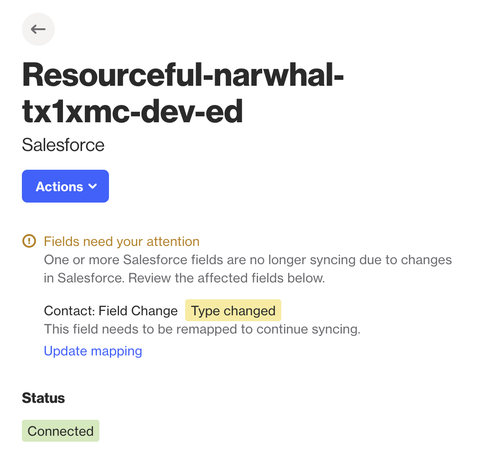
If an existing field in Ortto that has data has its field type changed directly in Salesforce, Ortto can detect that the type has changed.
An alert will be placed on your Salesforce data source integration in Ortto with the following message: Fields need your attention: One or more Salesforce fields are no longer syncing due to changes in Salesforce. Review the affected fields below.
This alert provides clarification on the affected object and field. For example, if a field called "Field Change" has been updated to a different type, the banner will display: Contact: Field Update. To resolve the issue and continue syncing, you will need to remap the field in Ortto.
Field deleted
If an existing field in Ortto that has data is deleted directly in Salesforce, Ortto can detect that the field no longer exists.
The message on your Salesforce data source connection will include the object name and the field that is no longer available. For example, if a field called "Field Deleted" has been removed, the banner will display: Contact: Field Deleted.
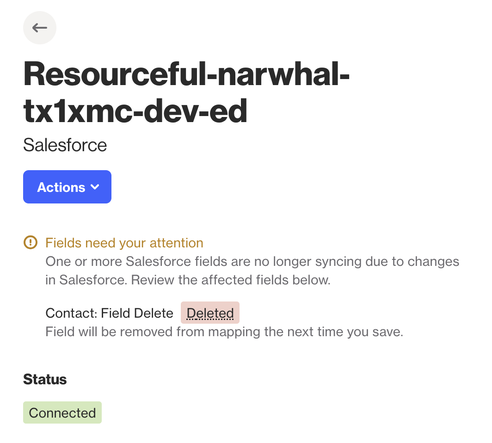
If the field is still required, it will need to be restored directly in Salesforce and then reselected in your Salesforce data source in Ortto by reviewing the Salesforce fields area.
Alternatively, you can select Edit under the Salesforce fields area on your Salesforce data source integration and save to remove the notification.
Identifying objects
In the Salesforce fields section of your data source integration, the object will display an error notification highlighting the impacted area. A manual review with your Salesforce system administrators will be required in Salesforce to determine the nature of any field modifications.
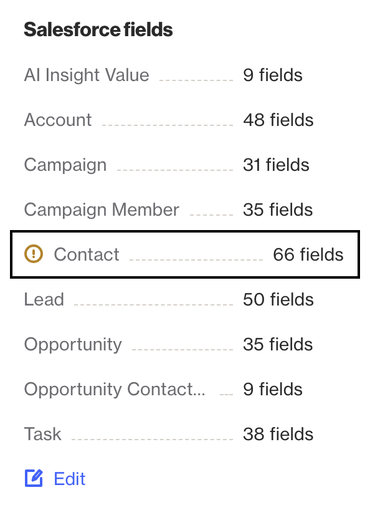
NOTE: If the status notification doesn't specifically refer to the object and field name, this is how you can identify the affected object in Salesforce for review.