
How to set up anchor links in landing pages
Overview
Anchor links, also known as internal links, allow visitors to jump to specific sections of your landing page with a single click. This is particularly useful for long-form landing pages where you want to provide quick navigation to different sections such as features, pricing, testimonials, or contact forms.
In Ortto's landing page builder, you can create anchor links using the block identifier feature, which enables seamless navigation within your page without requiring any custom code.
Configuring anchor links
An anchor link consists of two parts: the clickable link itself (usually in a button, menu, or text) and the target destination (the section you want to link to). When a visitor clicks the anchor link, the page smoothly scrolls to the designated section.
Follow the steps below to configure anchor links.
Step 1: Enable block identifiers for target sections
Before you can create anchor links, you need to identify which sections of your landing page will serve as destinations. These are the areas where visitors will land when they click an anchor link.
To enable a block identifier, select the content block you want to link to in your landing page. This could be a text block, image, form, or any other content element. At the bottom of the content block settings in the right sidebar, you'll see a toggle for Block identifier. Turn this toggle on to enable the block as an anchor destination.
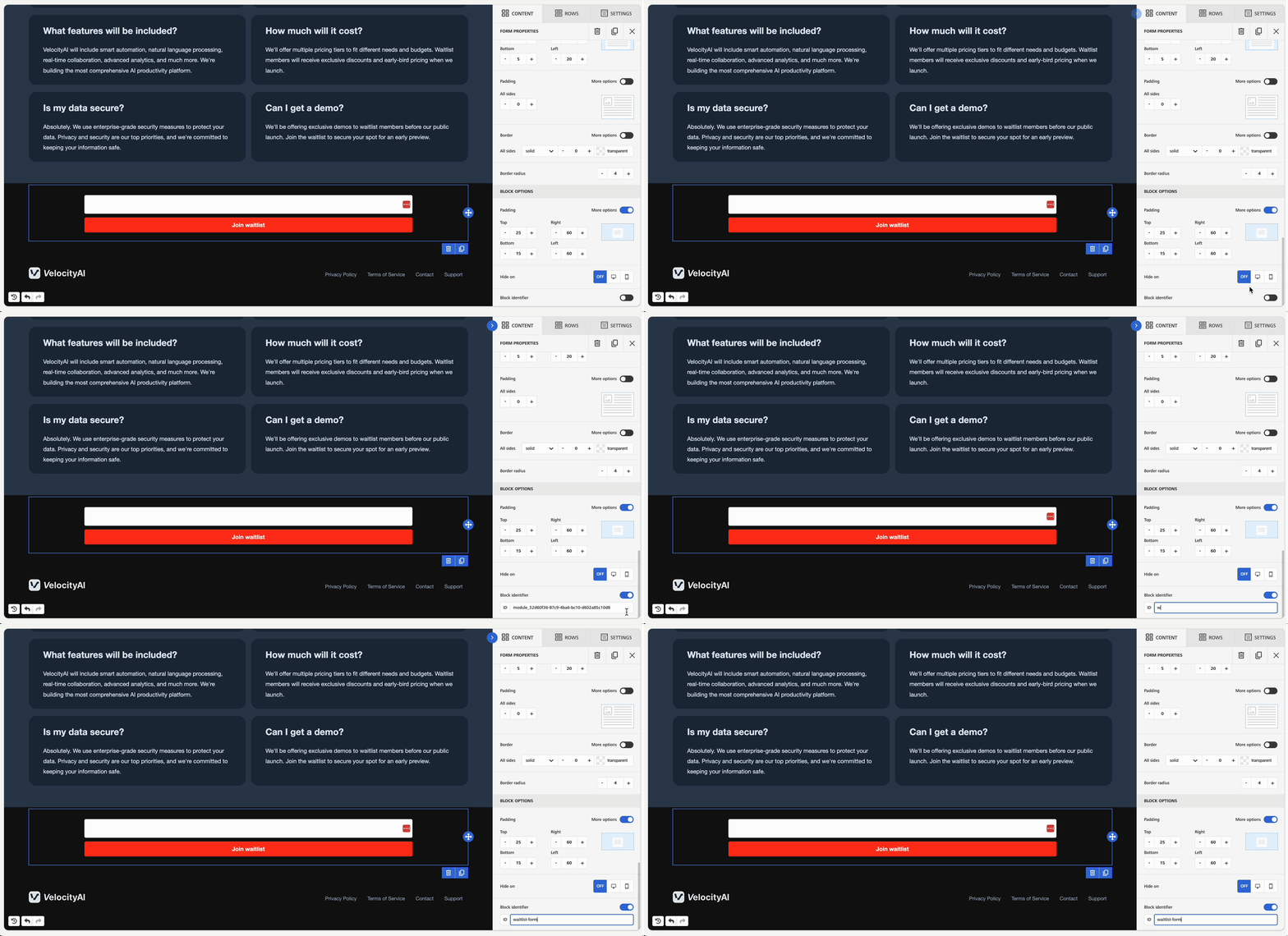
TIP: When you enable the block identifier, the builder automatically generates a unique identifier for that block. We recommend giving it a different name so it’s easier to identify the block, especially if you have more than one destination section on the same page.
Step 2: Create the anchor link
Once you've enabled block identifiers for your target sections, you can create the clickable anchor links that will navigate to those sections.
1. Select any content block that supports URL actions.
2. In the content block settings, look for the link type field.
3. Choose the Internal link option from the link type dropdown.
4. Select the block identifier you want to link to from this dropdown menu.
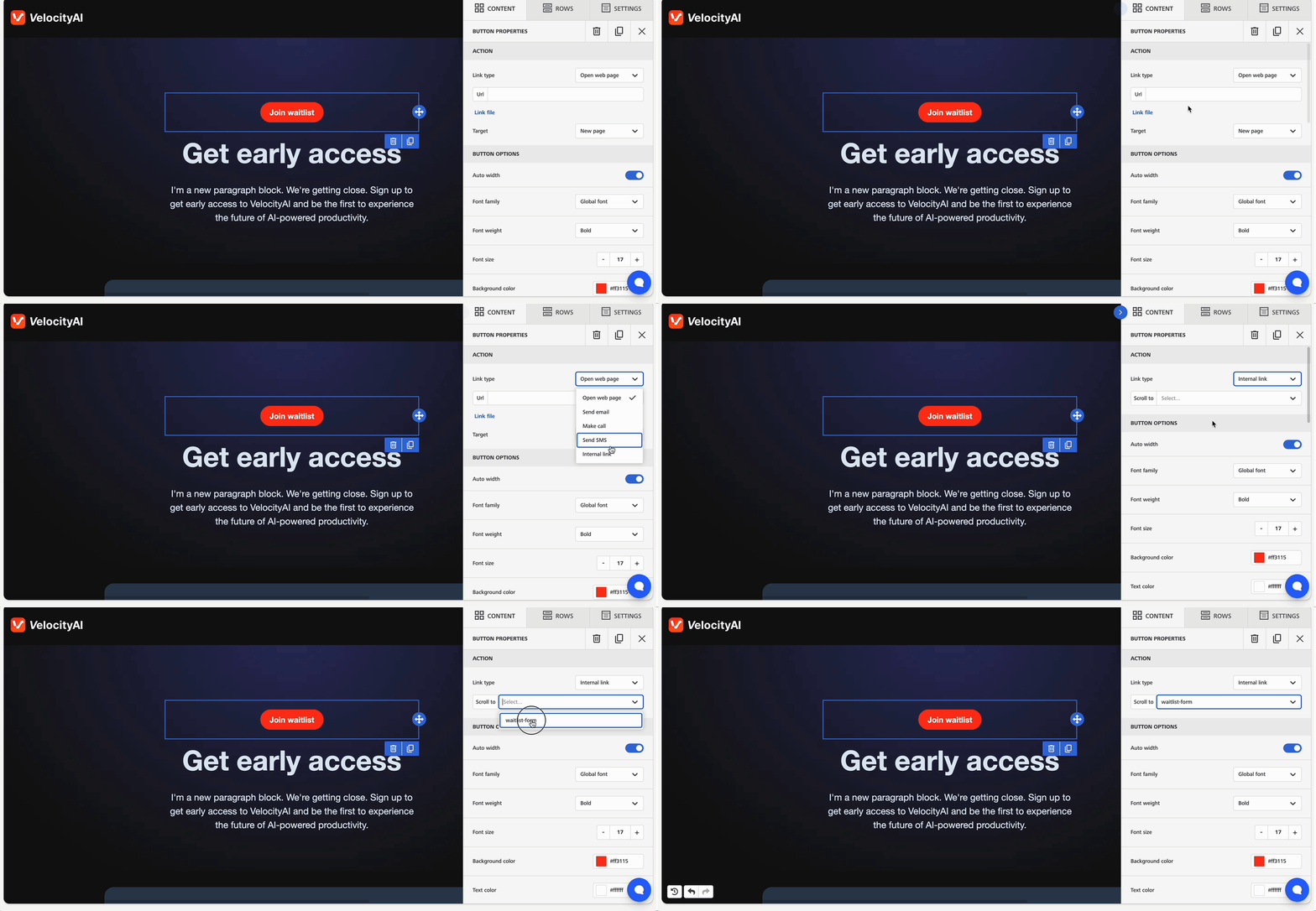
TIP: If you don't see any options in the dropdown, it means you haven't enabled any block identifiers yet. Return to Step 1 and enable block identifiers for the sections you want to link to.
Adding "Back to top" links
For longer landing pages, it's helpful to include "back to top" links that allow visitors to quickly return to the navigation menu or header.
To create a back to top link, first enable a block identifier for a content block near the top of your page, such as your header or navigation menu. Give it a clear identifier like "top" or "header". Then, throughout your landing page, add buttons or text links with phrases like "Back to top" or "↑ Top". Set these as internal links pointing to your top section identifier.
Consider placing these links at the end of major sections or after long blocks of content to improve user experience.
Testing your anchor links
After setting up your anchor links, it's important to test them to ensure they work correctly.
To test this, you’ll need to turn on the landing page (even temporarily), access the published page via its URL, and click through the links. If you’re not ready to go live yet, you can switch it back off once you’ve finished testing the anchor links.
Test your landing page on different devices and screen sizes to confirm anchor links work consistently across desktop, tablet, and mobile views.
Troubleshooting anchor links
If your anchor links aren't working as expected, check the following:
- Verify that you've enabled the block identifier toggle for the target section. This is the most common issue.
- Confirm that you've selected Internal as the link type, not External or Email.
- Check that you've actually selected a block identifier from the dropdown menu after choosing the internal link type.
- If the dropdown menu for internal links is empty, it means no block identifiers have been enabled in your landing page. You need to enable at least one block identifier before you can create anchor links.
If you’ve checked the above and are still having issues, please contact our support team at help@ortto.com or via the live chat available within your account.