
Business fields
Overview
Business fields are account level fields which can be used to store information related to the business itself, for all contacts within that account. This might be things such as the business name, address, website, social media links etc.
Business fields can then be used as account level merge tags, making it simple to update information across the account.
Accessing Business fields
To access and manage business fields, go to Settings > General > Business profile.
Creating and editing business fields
To create a new business field, go to Settings > General > Business profile > Custom fields and click + Add field.
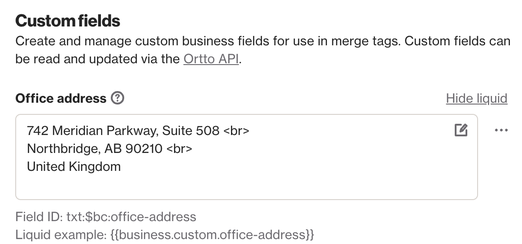
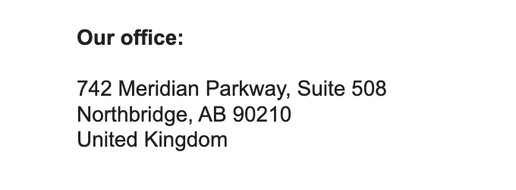
TIP: You can add email-supported HTML tags to control how the text is rendered. For example, we used <br> tags above to insert automatic line breaks, so the text appears correctly in the email:
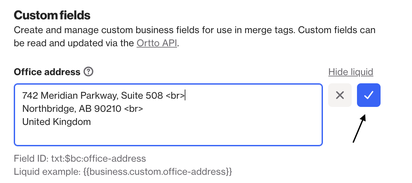
To edit the value of an existing business field, simply select the relevant field and enter the new value. Ensure to select the blue tick to save the updated value:
TIP: When viewing existing business fields, you can select Show liquid to view the liquid example for that field.
Using business fields
Users can populate business fields within the account settings, and can then use those fields as merge tags within campaigns, capture widgets, landing pages etc.
Business fields are designed for values that remain consistent across the entire account, such as:
- Business phone number
- Business address
- Business website
- Signature
Instead of manually updating this information in multiple places, users can manage it centrally within the account. This will then be applied across all campaigns / landing pages etc. using that merge tag.
Using business fields in campaigns
Business fields can be inserted into campaigns, capture widgets, and landing pages using merge tags:
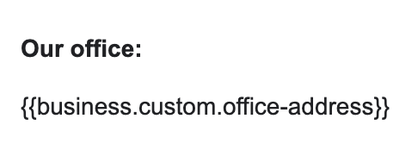
When a business field is edited, any campaign using the corresponding merge tag will automatically display the updated value with no further edits required.