
Manually ejecting contacts from a journey
Overview
You can manually remove contacts from an active journey using the Manually eject people option. This lets you exit specific contacts without needing to change the journey setup or filters.
How to manually eject contacts
1. Go to the Journey overview page.
2. Click the options (…) menu and select Manually eject people.
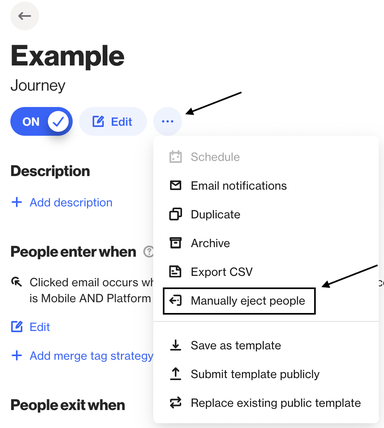
3. Build a filter to choose which contacts you want to remove:
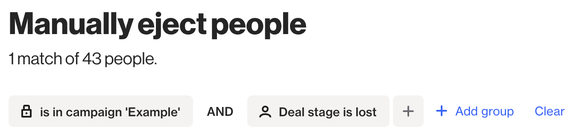
TIP: The Is in campaign… condition is automatically applied by our system to ensure only contacts who are currently in the journey are targeted.
4. Select the contact(s) and click the Eject button:

Any contacts that meet your filter criteria will be exited once the process runs.
What to expect
- Contacts in the journey more than once: If your journey allows multiple entries and a contact is currently in the journey more than once, all of their active entries will be ejected.
- Timing: Manual ejection isn’t immediate. For larger groups of contacts, it may take a few minutes for everyone to fully exit the journey.
- Who gets ejected: Only contacts who meet the criteria at the time you run the manual ejection will be removed. If a contact meets the criteria later, they won’t be automatically ejected. Run the manual ejection again or add the condition to your exit criteria if you want future matches removed too.
- How this shows on the contact record: When a contact is removed, you’ll see a Left journey activity on their profile with manually-ejected as the reason:
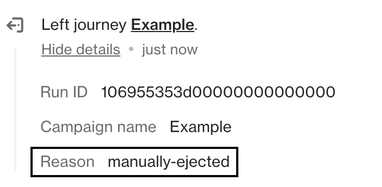
'Left journey' activity in the contact profile.
When this is useful
Manually ejecting contacts is helpful when you need to:
- Fix accidental journey entries.
- Stop contacts from continuing through a journey due to changes outside the journey.
- Quickly remove a specific group without editing the journey itself.
- Remove test contacts from the journey.