
Contacts with multiple email addresses
Overview
Contacts can have more than one usable email address, for example, a personal email and a work email, and you can choose which one your messages are sent to. Learn more about how to set this up.
Creating a custom email field
If you want to store and send to an additional email address (e.g., work, personal, secondary), you’ll first need to create a custom email field. This field must be of type Email.
To create one:
1. Go to Settings > Customer Data > Fields.
2. Click New custom field and choose Create person field.
3. Enter a name for your field (e.g., Business email, Secondary email).
4. Set the Field type to Email and click OK to save.
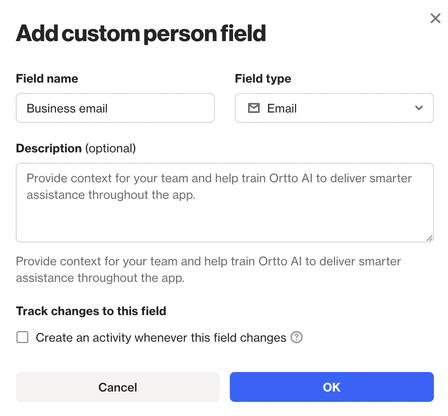
NOTE: If you’re currently storing a secondary email in a custom field that is not an Email field type (e.g., a Text field), you’ll need to create a new Email field following the steps above. Once created, you can use a Journey or a CSV import to copy the existing email values into the new field. If you need any assistance with this process, our support team is happy to help.
Using secondary emails in email campaigns
When sending an email campaign from the Campaigns tab, you can choose which email address to send to. This is configured on the Setup page under Email settings.
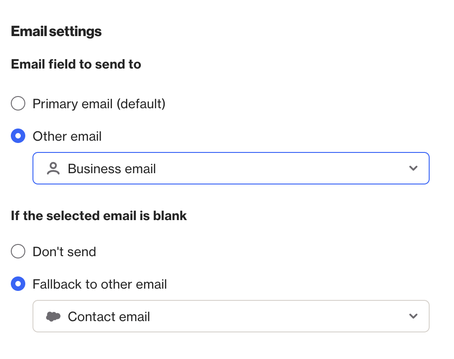
Email field to send to
- Primary email (default): Sends to the contact’s primary/system email field.
- Other email: Choose a custom email field (e.g., Work Email, Secondary Email) to send to instead.
If the selected email is blank
You can control what happens when the chosen email field has no value:
- Don’t send: The email will not be sent to that contact and will be marked as invalid.
- Fallback to other email: Choose another email field to use as a backup if the selected field is empty.
If both the selected email and the fallback email fields are empty, the email will be marked as invalid.
Open rate optimization
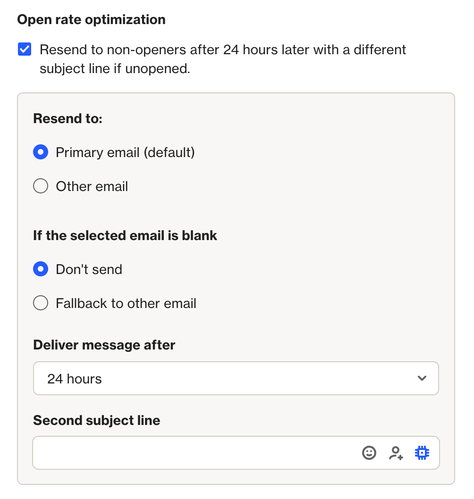
If you have open rate optimization enabled for an email campaign, you can also specify which email address the resend should go to. Just like the initial send, you pick the target email address, and an optional backup email if the first email field is empty. Keep in mind, the email address values for these contacts may have changed since the time of the initial send.
Learn more about open rate optimization.
Using secondary emails in journeys
In Journeys, you can also choose which email address your messages are sent to.
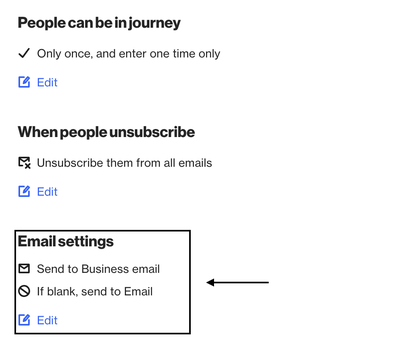
You can configure this in the Email settings section of the Journey. The available options are the same as for campaigns (selecting the email field, and setting fallback behaviour if the chosen field is empty).
NOTE: This is a journey-level setting, meaning it applies to all email shapes within that Journey.
Email activities
All email-related activities are tracked against the contact profile, not the email address.
For example, if you send an email to a secondary/custom email field and the contact unsubscribes, the contact profile will be marked as unsubscribed. You will no longer be able to send to that contact, even if you try using a different email field in the future.
The same logic applies to all other email activities, including bounces and spam complaints.
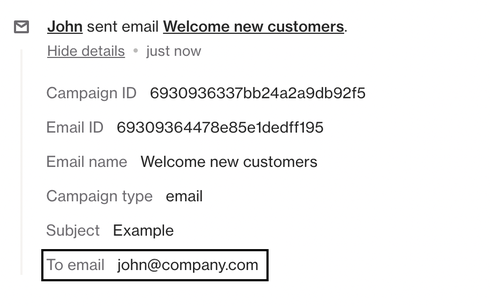
In addition, the system automatically includes the To email parameter in the Sent email activity. This shows the exact email address the message was delivered to, giving you clear visibility when reviewing a contact’s activity history.
Unique identifiers
You can configure your unique identifier settings to match one incoming email against two different fields in your existing contacts.
To handle this, you would set Email as your primary key. Then, under Check against another field, select Secondary email.
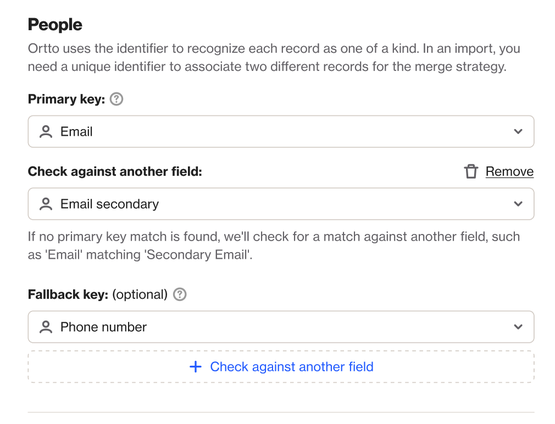
Example: If you have a contact with a primary email (e.g., lucy@locksmithlucy.com) and a secondary email (e.g., lucy.s@gmail.com), both emails will be checked when you import CSV files, send API requests, or sync data from sources like Salesforce or Pipedrive. This means that whether the record uses lucy@locksmithlucy.com or lucy.s@gmail.com, it will be matched and updated correctly.
Learn more about unique identifiers.