
Email heatmaps
NOTE: This feature was launched on June 20th, 2025, so email heatmaps won’t be available for emails sent before that date.
Overview
An email heatmap allows you to see exactly how your subscribers interact with your emails, highlighting which links get the most attention. By understanding engagement patterns, you can optimize your email design and content for higher click-through rates. Learn more about how to access heatmaps in this article.
Accessing email heatmaps
The email heatmap can be found within each email's Report tab. To view the heatmap, open the email and click on the Report tab:

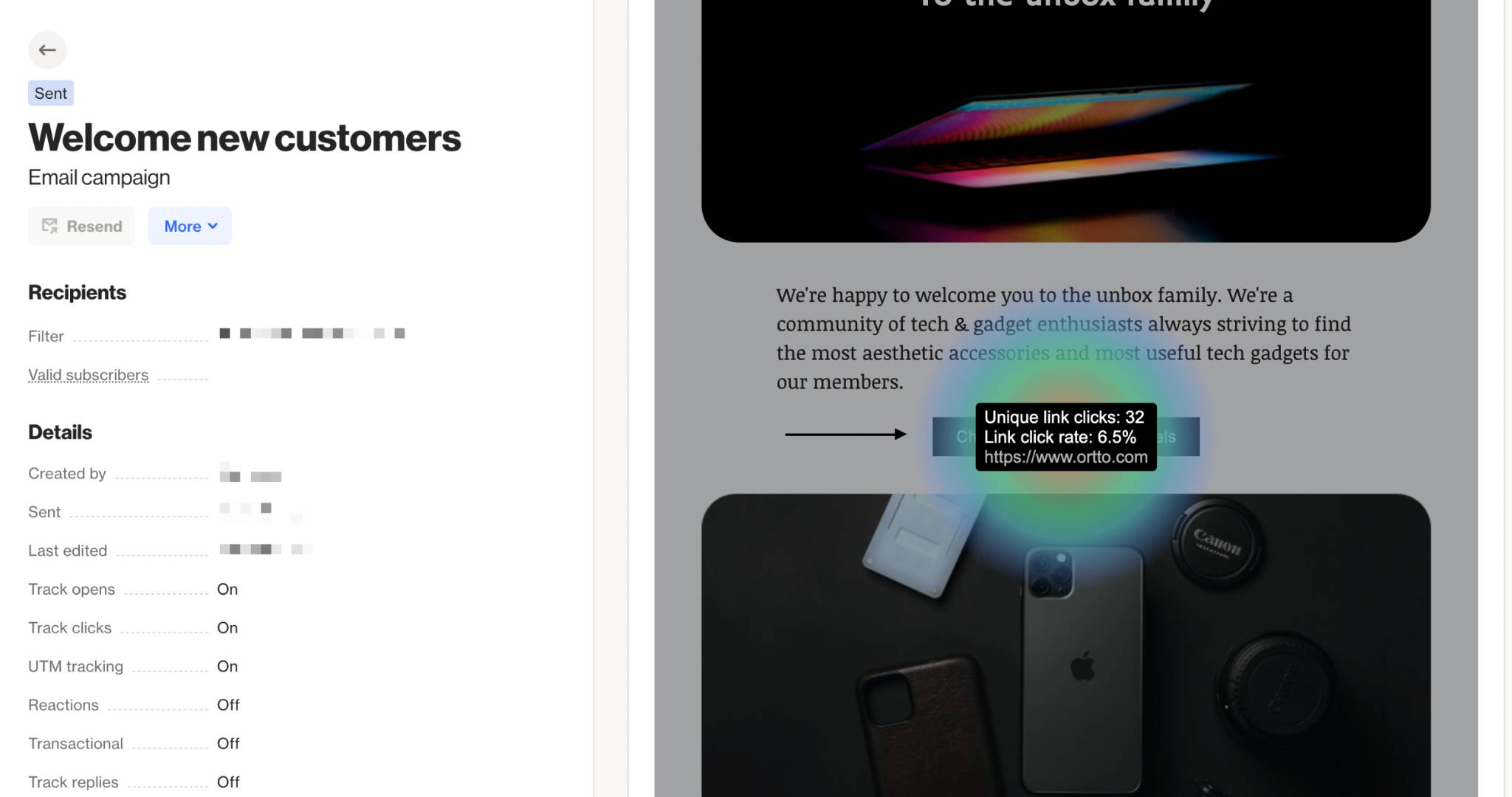
Then, scroll down to the Click map section, where the heatmap will be displayed. Each element that was clicked will have a heatzone automatically generated. When you hover over it, you’ll be able to see both the unique link clicks and the link click rate:
NOTE:
- We count only one click per email message within a 24-hour period, even if multiple links are clicked. If a contact clicks multiple links in an email that go to the same URL, we’ll only track the first click. This applies both to recording the click as an activity and to what appears on the heatmap.
- We count unique clicks as 1 click per person, per day. For example, if someone clicks 5 different links in the same day, it counts as 1 unique click, but each of those 5 links will still be counted individually in the Top links section and on the heatmap.
- If the same person clicks links on different days, each day counts as a new unique click.Learn more about how campaign statistics are calcualted.