
Preventing blurred images in emails
Overview
When sending an email containing images, those images can sometimes become slightly blurred upon sending. This happens when we take a larger image and have to resize it to ensure that it aligns with the email's content area width.
Accessing the email editor
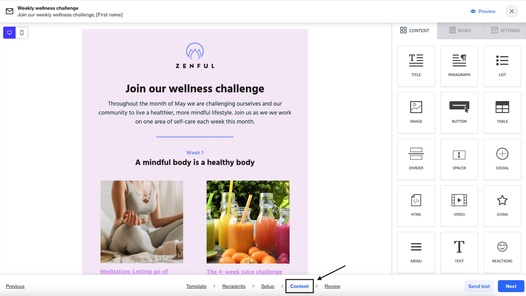
To access the email editor and adjust image width:
- Navigate to: Campaigns > Either create a new campaign, or select an existing one.
- If the email exists within a journey: Select the relevant email > Go to the content tab at the bottom of the screen.
Why image width may be adjusted
Image width may be adjusted due to:
- The overall content area width of the email.
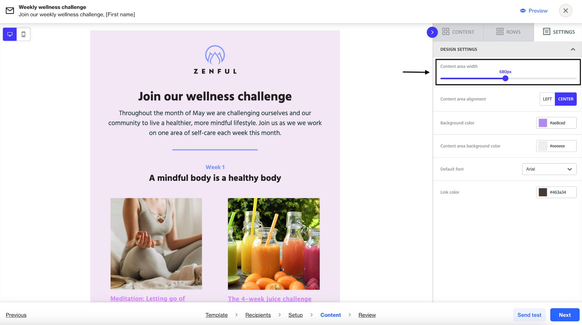
- The number of columns in the row - the content area width will be divided into the relevant ratio size of each column depending on how they are split. In the example below, there are two columns split evenly.
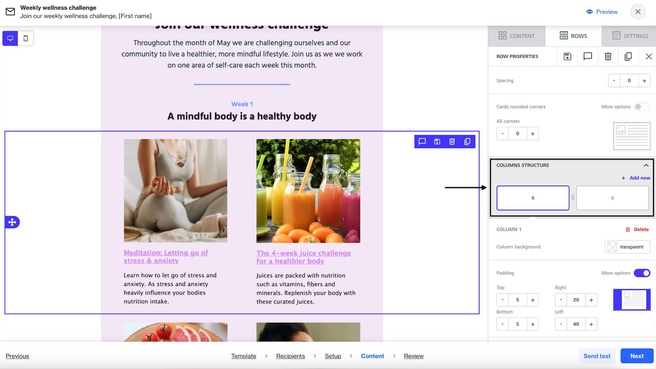
Screenshot highlighting the columns structure. - Any padding applied on the row, column and content area.
NOTE: Padding can be added in those three places separately, and all of them may impact the image width.
Resizing images to prevent them from blurring
To prevent images from becoming blurred, users can adjust the image width externally so that no resizing is required for the image to align with the content area width. This will mean that the image uploaded is the one used, preventing any blurring.
- The image should be set at <120% of the width set in the email editor.
To calculate out what the image width should be:
- Select your image and hover over the slider dot at the point you have set. If auto-width is enabled, users will need to temporarily disable it and hover over the slider at the 100% mark to identify the image width.
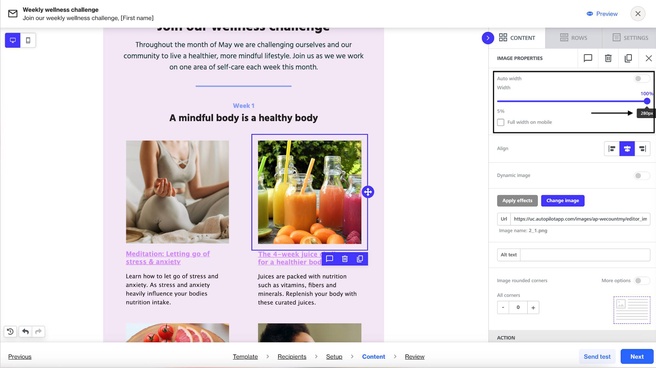
Screenshot showing how to identify the image width. 2. Calculate what the image width should be by multiplying your image width by 1.2.
EX: If the content area width was 280px as in the image above: 280 x 1.2 = 336px. This means that the image uploaded into the email should have a width of 336px or narrower.
This will mean that no resizing will be applied to your image and therefore, there should be no blurring.