
WhatsApp permissions
Overview
Navigating WhatsApp permissions in Ortto is key to ensuring a smooth integration and optimal use of your data. This guide will help you understand how WhatsApp permissions work.
What is WhatsApp permission?
WhatsApp permission is the explicit consent from individuals to receive marketing text messages in WhatsApp from a specific sender or organization.
Unsubscribe methods
People can unsubscribe from WhatsApp messages by sending one of the predefined STOP replies as a WhatsApp message, similar to SMS messages (STOP, UNSUBSCRIBE, CANCEL, END).
Users can update the WhatsApp permissions field using the following methods:
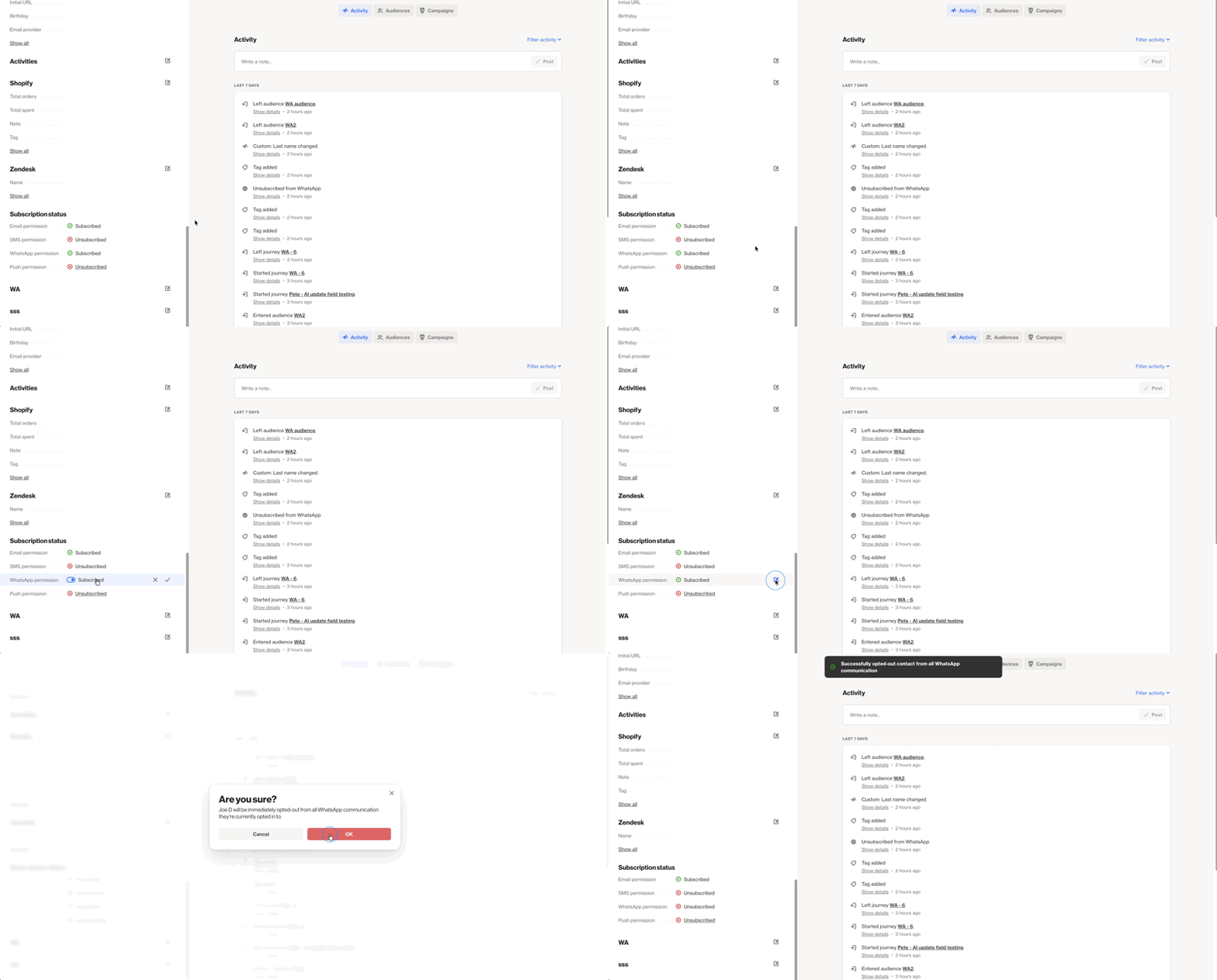
Manually update the WhatsApp permissions field for a single person
To manually update the WhatsApp permissions field, follow these steps:
- Navigate to the person's record.
- Locate the WhatsApp permission field.
- Toggle it to False and save.
- Click Ok when prompted that the customer will immediately be opted-out from all WhatsApp communication.
Update the WhatsApp permission field in a journey
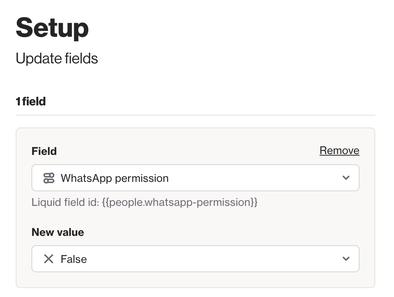
To update the WhatsApp permission field in a Journey, follow these steps:
- Add the Update Field action shape in a Journey.
- Select WhatsApp permission as the field to update.
- Select False as the new value.
Upload a CSV file
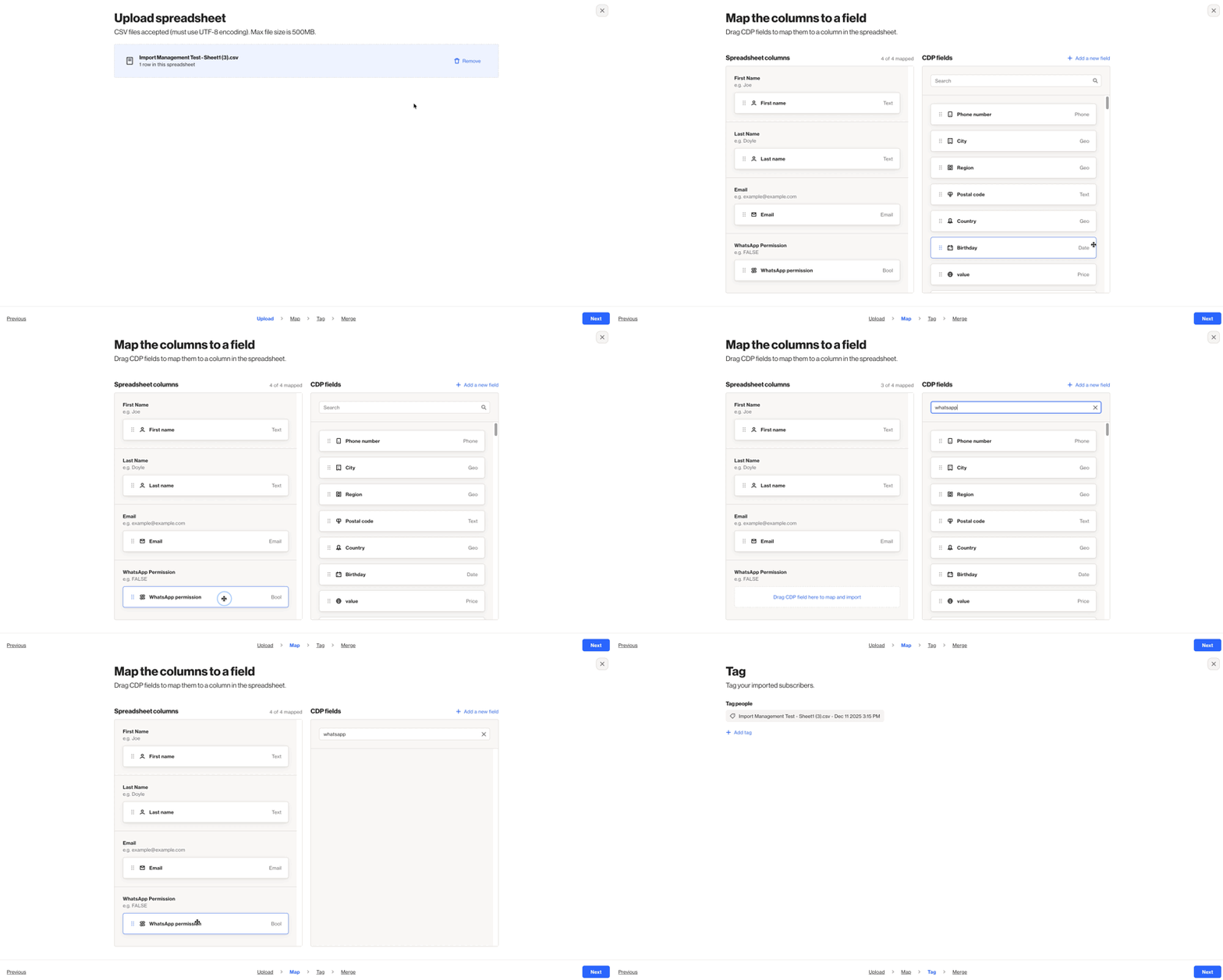
To unsubscribe a contact via a CSV import, follow these steps:
NOTE: Prior to uploading, ensure the CSV file contains a column for WhatsApp permission with the value set to False.
- Click CDP > People from the sidebar.
- Click More > Import.
- Select Spreadsheet import and follow the prompts.
- On the Map page, map the WhatsApp permission CDP field against the WhatsApp permission column.
API
To unsubscribe a contact via API, use the POST /v1/person/merge endpoint to update the person's WhatsApp permission field to False.
NOTE: This field reference would be bol::wa.
Resubscribe methods
Recipients can subscribe or resubscribe themselves using the following methods:
- Submit a capture widget or form with the WhatsApp permission field enabled.
Users can update an unsubscribed person's WhatsApp permission to True as long as the user has received explicit opt-in consent from the unsubscribed person.
Users can resubscribe an unsubscribed person's WhatsApp permission using the following methods:
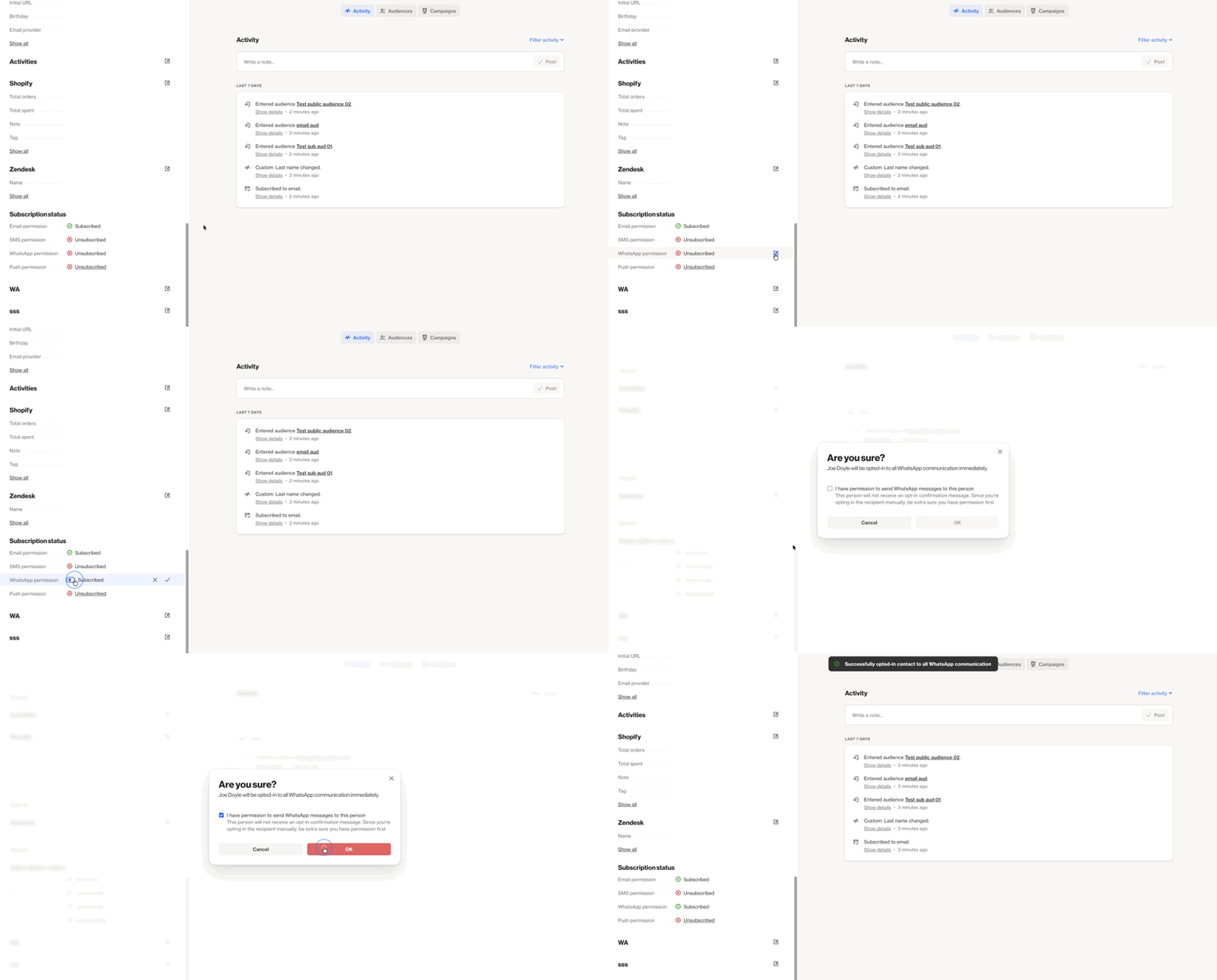
Manually update the WhatsApp permissions field for a single person
To manually update the WhatsApp permissions field, follow these steps:
- Navigate to the person's record.
- Locate the WhatsApp permission field.
- Toggle it to True and save.
- Tick the box certifying I have permission to send a WhatsApp message to this person.
- This person will not receive an opt-in confirmation message. Since you’re opting in the recipient manually, be extra sure you have permission first.
Update the WhatsApp permission field in a journey
To update the WhatsApp permissions field in a journey, follow these steps:
- Add the Update Field action shape in a Journey.
- Select WhatsApp permission as the field to update.
- Select True as the new value.
Upload a CSV file
To resubscribe a contact via a CSV import, follow these steps:
NOTE: Prior to uploading, ensure the CSV file contains a column for WhatsApp permission with the value set to True.
- Click CDP > People from the sidebar.
- Click More > Import.
- Select Spreadsheet import and follow the prompts.
- On the Map page, map the WhatsApp permission CDP field against the WhatsApp permission column.
API
To resubscribe a contact via API, use the POST /v1/person/merge endpoint to update the person's WhatsApp permission field to True.
NOTE: This field reference would be bol::wa.